On this page
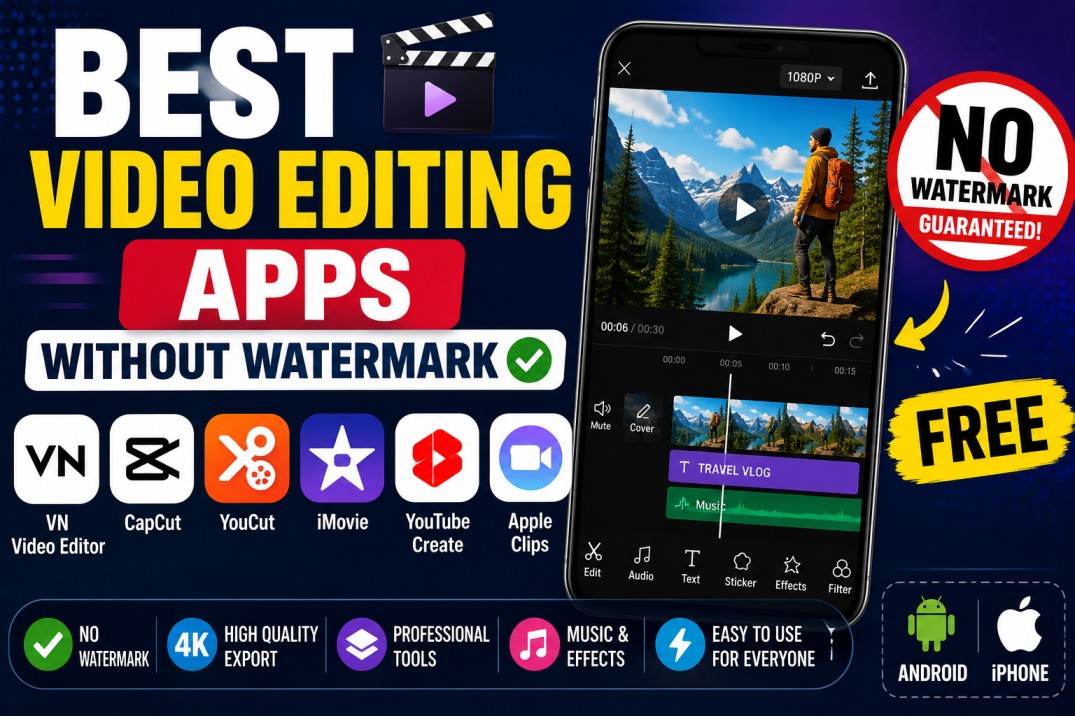
Mobile video-editing apps make it possible to create YouTube videos, Instagram Reels, TikTok clips, travel videos, tutorials, and family montages directly from a smartphone.
The frustrating part is that many “free” video editors place a logo, branded outro, or visible watermark on exported videos. Others allow clean exports but lock advanced effects, music, artificial-intelligence tools, or high-resolution output behind a subscription.
Fortunately, several mobile apps still allow users to export ordinary projects without a compulsory watermark.
This guide covers some of the best video-editing apps without a watermark for Android and iPhone in 2026, along with their main features, limitations, and ideal use cases.
Important: Nuvelloza.com is an independent informational website. We are not affiliated with CapCut, VN, YouCut, YouTube, Google, Apple, or any application developer mentioned in this article.
Best No-Watermark Video Editors: Quick Comparison
| App | Platform | Best for | Watermark on normal free exports |
|---|---|---|---|
| VN Video Editor | Android and iPhone | Advanced mobile editing | No compulsory watermark |
| CapCut | Android and iPhone | Social media, effects and captions | Usually no compulsory watermark on standard exports |
| YouCut | Android | Simple and fast editing | No watermark |
| iMovie | iPhone and iPad | Apple users and beginners | No watermark |
| YouTube Create | Android and supported devices | YouTube videos and Shorts | Clean project exports |
| Apple Clips | iPhone and iPad | Quick social clips | No traditional watermark |
Features, export limits, paid tools, app availability, and watermark policies may change. Always check the export preview before completing a project.
What Does “Without Watermark” Mean?
A no-watermark editor allows users to export a normal video without automatically placing the app’s logo or name over the finished footage.
However, this does not necessarily mean that:
- Every template is watermark-free
- Every stock asset is free
- Every AI feature is included
- All exports support 4K
- Premium effects are available
- The app contains no advertisements
- Paid subscriptions are unnecessary
Some apps may add an optional ending clip that users can remove before exporting. Certain templates or premium assets may also have separate restrictions.
1. VN Video Editor
Best for: Multilayer editing, longer videos, cinematic edits, and creators who want more control
VN is one of the strongest free mobile video editors for users who want a traditional timeline without a compulsory export watermark.
The official Google Play listing describes VN as a free, easy-to-use video editor with no watermark.
Main features
- Multi-track timeline
- Video trimming and splitting
- Keyframe animation
- Speed curves
- Filters and colour adjustment
- Transitions
- Text and subtitles
- Picture-in-picture layers
- Music and sound effects
- Chroma key
- Masking
- Draft saving
- Custom export settings
Advantages
- No compulsory watermark on regular exports
- Suitable for beginners and experienced editors
- Good control over multiple layers
- Useful for YouTube and longer-form videos
- Available on Android and iPhone
- More advanced than many simple social editors
Limitations
- The interface can feel complicated initially
- Some assets and AI tools may require payment
- Larger projects can use significant storage and memory
- Performance depends on the phone
Best for
VN is a strong option for:
- YouTube videos
- Travel edits
- Tutorials
- Cinematic montages
- Product videos
- Music videos
- Multi-layer social content
2. CapCut
Best for: Reels, Shorts, automatic captions, templates, effects, and fast social-media editing
CapCut is a popular video editor for Android, iPhone, desktop, and web.
Its official website states that users can create and export standard videos without a watermark.
Main features
- Timeline editing
- Automatic captions
- Text-to-speech
- Background removal
- Filters and transitions
- Speed controls
- Keyframes
- Chroma key
- Audio editing
- Social-media templates
- AI-assisted editing
- Effects and animations
Advantages
- Beginner-friendly
- Excellent for vertical social videos
- Large collection of effects
- Automatic caption tools
- Standard projects can usually be exported cleanly
- Available on Android and iPhone
Important watermark warning
Some CapCut templates may include:
- A branded ending clip
- Template credits
- Premium elements
- Pro-only effects
Check the entire timeline before exporting. Delete any optional CapCut ending clip when the project allows it.
Limitations
- Many advanced tools now require Pro
- Some templates use premium assets
- Features and availability differ by country
- Cloud and AI functions require internet access
- The interface contains many promotional tools
Best for
CapCut works well for:
- Instagram Reels
- YouTube Shorts
- TikTok-style videos
- Automatic subtitles
- Trending edits
- Product clips
- Fast promotional videos
3. YouCut
Best for: Android beginners who want quick editing without a watermark
YouCut is a straightforward Android video editor focused on trimming, merging, music, filters, and social-media exports.
Its official Google Play listing says that YouCut does not add a watermark to exported videos.
Main features
- Trim and split
- Merge clips
- Add music
- Add text
- Filters and effects
- Speed adjustment
- Video compression
- Background and ratio tools
- Rotate and crop
- Slideshow creation
Advantages
- Simple interface
- No compulsory watermark
- Suitable for older or mid-range Android phones
- Fast for basic editing
- Good for short videos
- Easy resizing for social platforms
Limitations
- Android-focused
- Less powerful than VN or CapCut
- Some effects and assets require payment
- Advertisements or purchase prompts may appear
- Not ideal for complex multi-track productions
Best for
YouCut is a good choice for:
- Simple YouTube videos
- WhatsApp status videos
- Reels
- Family videos
- Basic slideshows
- Quick trimming and compression
4. iMovie
Best for: iPhone and iPad users who want a clean, simple editor from Apple
iMovie is Apple’s free video-editing application for supported iPhones and iPads.
It includes timeline editing, titles, transitions, soundtracks, green-screen effects, picture-in-picture, Storyboards, and Magic Movie tools. Apple’s current App Store listing also supports exports up to 4K at 60 frames per second on compatible devices.
Main features
- Movie timeline
- Magic Movie
- Storyboards
- Trailer templates
- Animated titles
- Filters
- Picture-in-picture
- Split screen
- Green screen
- Voice recording
- Built-in soundtracks
- 4K export on compatible devices
Advantages
- No traditional export watermark
- Free for supported Apple devices
- Easy to learn
- Smooth integration with Photos
- Reliable performance on iPhone and iPad
- Suitable for basic and moderate projects
Limitations
- Not available for Android
- Fewer social effects than CapCut
- Limited advanced colour and animation controls
- Timeline tools are simpler than VN
- Large projects may still require more advanced software
Best for
iMovie is ideal for:
- Family videos
- School projects
- Travel montages
- Simple YouTube content
- Interviews
- Apple users who want a clean editor
5. YouTube Create
Best for: YouTube creators, Shorts, captions, voiceovers, and direct publishing
YouTube Create is Google’s mobile video-editing app designed to help creators edit videos and publish them to YouTube.
Google’s official help pages explain that users can create projects, edit videos, save them, and upload directly to YouTube through the app.
Main features
Depending on the current version and region, features may include:
- Video trimming
- Transitions
- Automatic captions
- Voiceovers
- Filters
- Stickers
- Music
- Audio cleanup
- Background tools
- Direct YouTube upload
- Shorts-friendly editing
- Selected AI creation tools
Advantages
- Developed by YouTube
- Good for YouTube videos and Shorts
- Integrated publishing
- Beginner-friendly workflow
- Useful music and caption tools
- No traditional editor watermark on ordinary project exports
Limitations
- Availability differs by country and device
- A Google account is required
- Some features are Android-first or region-limited
- Less control than a professional timeline editor
- Apple availability should be checked in the local App Store
Google maintains a separate page listing locations where YouTube Create is available.
Best for
YouTube Create is useful for:
- YouTube Shorts
- Talking-head videos
- Tutorials
- Vlogs
- Voiceover content
- Beginner YouTube channels
6. Apple Clips
Best for: Fast social videos, animated captions, posters, and casual Apple users
Clips is another Apple video-creation app designed for short, expressive videos.
It is simpler than iMovie and focuses more on quick recording, captions, visual effects, stickers, and social sharing.
Main features
- Live titles
- Camera recording
- Posters
- Stickers
- Filters
- Music
- Selfie scenes on supported devices
- Short-form video creation
- Social sharing
Advantages
- No traditional export watermark
- Easy to use
- Designed for quick clips
- Good for captions and casual social videos
- Works well within the Apple ecosystem
Limitations
- Apple devices only
- Not intended for detailed timeline editing
- Limited control for long videos
- Less suitable for professional work
Best for
Apple Clips is useful for:
- Social updates
- Birthday clips
- Short announcements
- School activities
- Quick captioned videos
Apps That Commonly Add Watermarks on Free Plans
Watermark and subscription policies change, but free versions of some popular editors have historically added branding or restricted clean exports.
These may include:
- KineMaster
- Filmora
- PowerDirector
- InShot
- VivaVideo
- VideoShow
For example, current mobile-editor comparisons continue to note that KineMaster’s free tier adds a watermark.
Some of these apps may allow users to:
- Watch an advertisement to remove a watermark
- Remove it temporarily
- Use a free trial
- Pay for a subscription
- Export selected projects cleanly
Always inspect the final export screen.
Which App Is Best?
Best overall free editor without watermark
VN Video Editor
VN provides one of the best balances of timeline control, multilayer editing, and clean exports.
Best for social media
CapCut
CapCut is especially strong for effects, captions, templates, Reels, and Shorts.
Best simple Android editor
YouCut
YouCut is easy to use and does not add a compulsory watermark.
Best for iPhone
iMovie
iMovie is free, stable, clean, and capable of high-quality exports on supported Apple devices.
Best for YouTube beginners
YouTube Create
It offers a straightforward workflow from editing to publishing.
Best App by Use Case
| Need | Recommended app |
|---|---|
| YouTube long videos | VN |
| Reels and Shorts | CapCut |
| Basic Android edits | YouCut |
| iPhone editing | iMovie |
| Direct YouTube publishing | YouTube Create |
| Advanced mobile timeline | VN |
| Automatic captions | CapCut or YouTube Create |
| Family videos | iMovie or YouCut |
| Low-learning-curve editing | YouCut or iMovie |
How to Check Whether an App Adds a Watermark
Before editing a large project:
- Install the official app.
- Create a short test project.
- Add one small video clip.
- Export it using the free plan.
- Watch the entire exported video.
- Check the corners and final seconds.
- Confirm that no logo or outro appears.
- Check whether selected effects require payment.
This simple test can save hours of editing.
Features to Look For
A good free video editor should offer:
- Trimming
- Splitting
- Merging
- Text
- Music
- Voiceovers
- Aspect-ratio controls
- At least 1080p export
- Reasonable frame-rate options
- Basic transitions
- Audio volume controls
- No forced watermark
- Clear subscription terms
More advanced users may also need:
- Keyframes
- Chroma key
- Masks
- Speed curves
- Multilayer editing
- Colour grading
- Automatic captions
- Noise removal
- 4K export
How to Download Safely
Use only:
- Google Play Store
- Apple App Store
- The developer’s verified website
Check the exact developer and app identity before installation.
Avoid:
- Modified APK files
- “Premium unlocked” downloads
- Cracked versions
- Telegram download links
- Unknown websites
- Apps promising every paid feature free
Modified apps may contain spyware, advertising malware, account theft tools, or hidden subscription systems.
Copyright and Music Warning
A watermark-free export does not mean every included song, image, video, font, or template is free for commercial use.
Before publishing, check:
- Music licence
- Stock-video licence
- Template terms
- Font licence
- Commercial-use restrictions
- Platform copyright rules
YouTube, Instagram, Facebook, and TikTok may mute or remove videos using copyrighted music without permission.
Use:
- Your own audio
- Royalty-free libraries
- Properly licensed music
- Music included for the intended platform and usage
Export Quality Tips
For most social videos:
- Use 1080p
- Use 30 fps for ordinary content
- Use 60 fps for smooth action where the original footage supports it
- Match the original video’s frame rate
- Use 9:16 for Reels and Shorts
- Use 16:9 for standard YouTube videos
- Avoid repeated exports, which can reduce quality
4K exports create larger files and require more storage and processing power.
How to Avoid Losing a Project
- Keep enough free storage
- Save drafts regularly
- Do not delete original videos
- Back up important footage
- Avoid clearing app data
- Keep the app updated
- Export a test version
- Charge the phone before long exports
- Do not close the app during rendering
Cloud drafts may have storage or subscription limits.
Common Problems
App Adds an Ending Clip
Open the timeline and delete the branded ending before exporting, where permitted.
Premium Effect Prevents Export
Replace the premium asset with a free alternative or subscribe only after checking the price.
Video Export Fails
Try:
- Freeing storage
- Restarting the phone
- Reducing export resolution
- Closing other apps
- Updating the editor
- Removing a corrupted clip
Exported Video Looks Blurry
Check:
- Project resolution
- Export quality
- Original clip resolution
- Social platform compression
- Aspect-ratio settings
App Becomes Slow
Reduce:
- Number of video layers
- Heavy AI effects
- 4K footage
- Motion effects
- Background applications
Frequently Asked Questions
Which is the best free video-editing app without watermark?
VN is one of the best overall options because it provides a capable timeline and clean exports. CapCut is better for fast social-media effects.
Does CapCut add a watermark?
Normal timeline projects can generally be exported without a compulsory watermark, but some templates may include branded elements or ending clips. Check the timeline before exporting.
Is VN completely free?
VN offers a free editor with no compulsory watermark, although selected assets, services, or future features may involve purchases.
Does YouCut add a watermark?
Its official Google Play listing says it does not add a watermark to exported videos.
Is iMovie free?
iMovie is available through Apple for supported iPhone and iPad devices and provides clean exports without a traditional app watermark.
Which app is best for YouTube Shorts?
CapCut and YouTube Create are strong choices for vertical videos, captions, and quick publishing.
Which editor works best on an older Android phone?
YouCut may be easier on some lower-powered devices than editors with many layers and AI effects. Actual performance depends on the phone.
Can I export in 4K for free?
Some apps allow 4K exports on compatible devices, but limits differ. iMovie supports up to 4K at 60 fps on supported Apple hardware.
Are watermark-free apps safe?
They can be safe when downloaded from official stores, but users should still verify the developer, privacy policy, permissions, and subscription terms.
Final Recommendation
Choose:
- VN for the best overall editing control
- CapCut for Reels, Shorts, captions, and effects
- YouCut for quick Android editing
- iMovie for iPhone and iPad
- YouTube Create for simple YouTube production
Before committing to an editor, create a short test project and confirm that your preferred export settings remain free and watermark-free.
Disclaimer
This article is provided for general informational purposes only.
Nuvelloza.com is not affiliated with or endorsed by VN, CapCut, YouCut, YouTube, Google, Apple, or any video-editing developer.
Application availability, free features, watermark policies, advertisements, export quality, subscriptions, platform support, and licensing terms may change.
Always review the latest app-store listing, export screen, and developer terms before editing or publishing content.

nuvelloza
Nuvelloza’s editorial team is responsible for researching, reviewing, and maintaining this guide.
More articles by this authorRelated guides
How to Check Whether an App Is Official Before Installing It
On this pageWhat Does “Official App” Mean?Why Should You Verify an App Before Installing It?15 Ways to Check Whether an App Is Official1.…
How to Cancel Hidden App Subscriptions on Android and iPhone
On this pageWhat Is a Hidden App Subscription?Why App Subscriptions Continue After UninstallingHow to Find Hidden SubscriptionsHow to Cancel an App Subscription on…

How to Identify Fake AI Apps: 15 Warning Signs Before Installing
On this pageWhat Is a Fake AI App?Why Can Fake AI Apps Be Dangerous?Personal information may be collectedLogin details may be stolenExpensive subscriptions…