On this page
Searching for an app by name does not always lead directly to the genuine version. Copycat applications can use similar names, icons, screenshots, descriptions, and keywords to appear connected to a well-known company.
An unofficial app is not automatically dangerous. Many independent developers create legitimate applications using their own branding and technology. The problem begins when an app falsely claims to represent another company, copies protected branding, hides its real developer, or misleads users about its features and pricing.
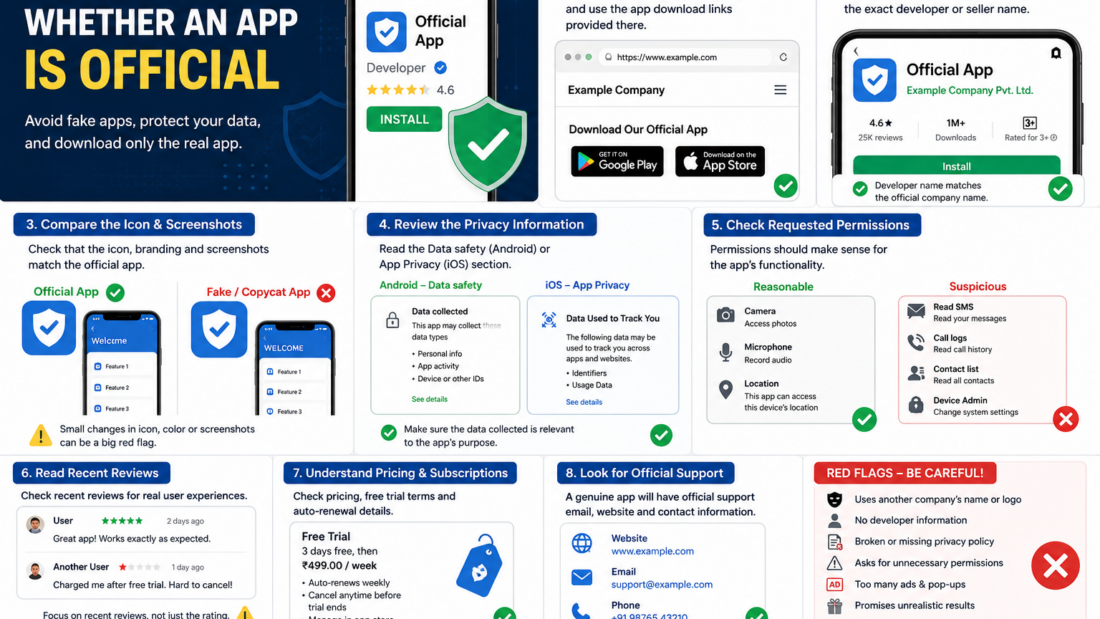
Before installing an app, take a few minutes to verify its developer, official website, store listing, privacy information, permissions, reviews, and payment terms.
This guide explains how to check whether an app is official on Android and iPhone and what warning signs to watch for before downloading it.
Important: Being available in the Google Play Store or Apple App Store reduces some risks, but it does not replace your own checks. Store listings, privacy disclosures, developer details, and permissions should all be reviewed together.
What Does “Official App” Mean?
An official app is published or authorised by the organisation, company, developer, bank, government department, or service that owns the product.
For example, the official app of a company should normally be:
- Published under the company’s recognised developer or seller name
- Linked from the company’s official website
- Supported through the company’s official contact channels
- Consistent with the company’s branding
- Covered by a relevant privacy policy
- Listed with accurate features, pricing, and subscription information
An app may be useful without being official. A third-party weather app, password manager, AI assistant, calculator, or file manager may be completely legitimate even though it is not connected to a famous brand.
The key question is whether the app clearly and honestly identifies who created it.
Why Should You Verify an App Before Installing It?
A misleading app may attempt to:
- Collect personal information
- Steal login credentials
- Charge expensive subscriptions
- Copy a trusted company’s name
- Display excessive advertisements
- Redirect users to unsafe websites
- Request unnecessary permissions
- Encourage users to install files outside the official store
- Collect uploaded photos, documents, or messages
- Make false claims about government or company approval
Verifying the app first can help protect your device, accounts, money, and private information.
15 Ways to Check Whether an App Is Official
1. Start from the company’s official website
The safest method is often to visit the company’s official website first.
Look for links labelled:
- Download our app
- Get it on Google Play
- Download on the App Store
- Mobile apps
- Official application
Open the app-store listing through that link instead of relying only on search results.
For example, OpenAI’s official support pages direct users to its official ChatGPT listings and identify OpenAI as the publisher.
Be careful when reaching a download page through:
- Social-media advertisements
- Messaging groups
- Unsolicited emails
- Sponsored search results
- Shortened links
- Unknown websites
- YouTube descriptions
- Pop-up advertisements
Always check the website address before continuing.
2. Check the exact developer or seller name
The app title is not enough. Open the full store listing and identify the developer or seller.
Look for the exact legal or recognised company name.
A suspicious listing may use a similar-looking name, such as:
- Open Al instead of OpenAI
- Official Chat Assistant
- Meta Services Pro
- Google Technology Apps
- State Government Online
- Bank Secure Digital
- Premium AI Corporation
Small spelling differences can be easy to miss.
Compare the developer name with:
- The official company website
- The company’s support pages
- Its verified social-media profiles
- Other recognised apps from the same company
- The developer information shown in the store
Do not assume that words such as “official,” “verified,” “secure,” or “government” prove anything.
3. Compare the app-store link with the official website
A genuine company website should normally direct users to the same listing they see in the app store.
Check whether:
- The app name matches
- The developer name matches
- The icon matches
- The screenshots match
- The store link opens the correct country or regional listing
- The description matches the company’s advertised features
A search result may lead to a different app using similar branding.
When possible, open the store page from both the official website and the app-store search. Confirm that both links lead to the same listing.
4. Examine the app icon carefully
Copycat apps often imitate the logo or colour scheme of a popular service.
Look for:
- Slightly different colours
- Missing design elements
- Blurry images
- Extra words such as “Pro” or “Plus”
- A logo inside an unusual border
- Low-quality graphics
- An old version of the company logo
- Added check marks or “official” badges
Do not rely on the icon alone. Icons are easy to copy.
Use the developer name and official website as stronger evidence.
5. Review the screenshots
Screenshots should represent the actual app.
Check whether they:
- Match the company’s current website
- Use consistent branding
- Show realistic features
- Contain correct spelling
- Match the phone platform
- Avoid fake awards or ratings
- Show the same app name throughout
- Explain subscriptions clearly
Warning signs include:
- Screenshots copied from another app
- Text referring to a different company
- Poorly edited logos
- Features not mentioned on the official website
- Claims of guaranteed results
- Fake government seals
- Fake security certifications
- Screens that look more like advertisements than the real interface
Professional screenshots are not proof of authenticity, but obvious inconsistencies are a reason to stop and investigate.
6. Read the complete app description
A trustworthy listing should clearly explain:
- What the app does
- Who operates it
- What features are included
- Whether registration is required
- Whether payments or subscriptions are involved
- How support is provided
- Which devices or regions are supported
A suspicious description may contain:
- Repeated keywords
- Poor grammar
- Unrealistic promises
- Unclear pricing
- No company information
- Urgent pressure to install
- Claims of unlimited premium access
- Guaranteed income or rewards
- References to another app
- Unrelated features
- Instructions to contact support through a private messaging account
Do not install an app when its identity and purpose are unclear.
7. Open the developer’s website
App-store listings usually include a developer website or support link.
Open it and check:
- Whether the site works
- Whether it uses the same company name
- Whether the app is mentioned
- Whether support information is available
- Whether the privacy policy is accessible
- Whether the domain looks genuine
- Whether the site uses secure HTTPS
- Whether legal and contact pages exist
Warning signs include:
- A broken website
- A blank page
- A free temporary website
- A domain unrelated to the developer
- Copied legal pages
- No mention of the app
- No support contact
- A recently created page with little information
A small developer may have a simple website, but the information should still be consistent.
8. Review the privacy information
Before installing an Android app, users can review its Google Play Data safety section. Google says this section helps users understand how an app may collect, share, and protect data. The information is supplied by the developer for display on the store listing.
On Apple platforms, App Store product pages include privacy information explaining certain data types the app may collect and whether data may be linked to the user or used for tracking.
Check whether the app may collect:
- Contact information
- Location
- Photos and videos
- Financial information
- Browsing activity
- Search history
- Device identifiers
- Purchases
- Messages
- Health information
- User-generated content
Compare the data collection with the app’s purpose.
For example, a simple flashlight or calculator should not normally require extensive personal information.
Remember that store privacy information should be considered alongside the developer’s full privacy policy and the permissions requested by the app.
9. Open the privacy policy
A legitimate privacy policy should normally explain:
- The company or developer operating the app
- What information is collected
- Why it is collected
- How it is stored
- Whether it is shared
- How users can contact the developer
- How users can request account or data deletion
- How uploaded content is handled
- Whether third-party services are used
Google Play requires app developers to provide privacy disclosures for user data, and the named entity in the store listing should be connected to the app or privacy policy.
Warning signs include:
- No privacy policy
- A broken privacy-policy link
- A policy for another company
- No developer name
- No contact information
- A one-paragraph generic policy
- Claims that conflict with the store listing
- A policy hosted on an unrelated domain
Do not upload sensitive files to an app whose privacy practices are unclear.
10. Check the requested permissions
Permissions should match the app’s function.
Reasonable examples include:
- A camera app requesting camera access
- A navigation app requesting location access
- A voice assistant requesting microphone access
- A photo editor requesting selected-photo access
- A contact-backup app requesting contacts
Question the app if it requests access to:
- SMS messages
- Call logs
- Accessibility services
- Device administrator controls
- All files
- Precise location
- Contacts
- Notification access
- The ability to install other apps
- The ability to appear over other apps
A permission is not automatically dangerous, but the app should have a clear reason for requesting it.
Use limited permission options where available, such as:
- Allow only while using the app
- Ask every time
- Select specific photos
- Approximate location
- Do not allow
11. Read recent reviews, not only the rating
A high average rating does not guarantee that an app is official.
Read recent reviews and look for patterns.
Useful warning signs include repeated complaints about:
- Unexpected subscription charges
- Fake branding
- Login problems
- Missing features
- Excessive advertising
- Difficulty cancelling
- Poor support
- Data-privacy concerns
- The app being different from its screenshots
- The app pretending to be another service
Be cautious of reviews that:
- Use identical wording
- Contain only one or two words
- Repeat marketing language
- Mention unrelated features
- Appear in large groups
- Give five stars without any detail
Also check how the developer replies to complaints. Professional and specific responses may be more reassuring than aggressive or generic answers.
12. Check download counts and release history
Download numbers can provide context, but they do not prove authenticity.
A newly released app claiming to represent a major global company deserves careful review.
Check:
- Approximate download count
- Initial release date
- Last update date
- Version history
- Update notes
- Other apps from the same developer
A genuine app may be new, especially when a company has recently launched a service. However, the official company website should confirm it.
An old app is not automatically safe either. Ownership, features, pricing, or data practices may change over time.
13. Check prices and in-app purchases
Open the pricing or in-app purchase section before installing.
Look for:
- Weekly subscription price
- Monthly subscription price
- Annual subscription price
- Free-trial duration
- Automatic renewal
- One-time purchase options
- Credit packages
- Cancellation method
A copycat app may use the name of a free or well-known service while charging an expensive weekly subscription.
Check whether the official company advertises the same plan and price.
Do not assume that an app is official because it uses the store’s normal payment system. The payment may be processed correctly while the app’s identity or marketing remains misleading.
14. Search the company’s official support pages
Search the official company website for phrases such as:
- Official Android app
- Official iPhone app
- Mobile app download
- Supported apps
- App Store
- Google Play
- Fake apps
- Impersonation warning
Companies often publish direct download links or instructions for identifying their official listing.
OpenAI, for example, directs users to ChatGPT’s official iOS and Android listings through its own support centre.
Use the company’s own support pages rather than random blogs or advertisements.
15. Be suspicious of downloads outside official stores
Avoid installing apps from unknown websites unless you fully understand and trust the source.
Android users may be asked to download an APK file. iPhone users may be asked to install:
- Configuration profiles
- Enterprise certificates
- Device-management profiles
- Unfamiliar web apps
Major warning signs include instructions to:
- Disable Google Play Protect
- Turn off security settings
- Allow installation from unknown sources
- Trust an unknown enterprise developer
- Ignore a browser warning
- Install a second app first
- Enter a password outside the expected service
- Send a verification code to another person
Apple advises users to prefer the App Store or a trusted source when a developer cannot be verified.
How to Check Whether an Android App Is Official
Follow these steps before installing an Android app:
- Visit the company’s official website.
- Open its Google Play link.
- Confirm the developer name.
- Compare the app icon.
- Read the full description.
- Review the Data safety section.
- Open the privacy policy.
- Check the requested permissions.
- Read recent reviews.
- Review in-app purchases.
- Check the developer website and support email.
- Compare the listing with information on the official company site.
Do not install the app if several details do not match.
How to Check Whether an iPhone App Is Official
Follow these steps before installing an iPhone app:
- Visit the company’s official website.
- Open its App Store link.
- Check the seller or developer name.
- Compare the icon and screenshots.
- Read the description.
- Review the App Privacy section.
- Open the developer website.
- Check in-app purchases and subscriptions.
- Read recent reviews.
- Confirm that the official website mentions the same app.
Apple reviews apps and app updates against safety, privacy, security, performance, business, design, and legal requirements, but users should still review the listing and developer information before installing.
How to Check a Government App
Government-related apps deserve special attention because fake apps may request identity documents, bank information, phone numbers, or verification codes.
Before installing:
- Visit the official government department website
- Check whether the app is linked there
- Confirm the developer or publisher
- Check the official domain
- Compare the logo
- Read the privacy policy
- Avoid apps claiming guaranteed benefits or approval
- Never pay through an unrelated personal account
- Never share OTP or banking credentials
- Avoid APK files sent through messaging apps
Words such as “government,” “official,” “scheme,” or “portal” in an app name do not prove affiliation.
How to Check a Banking or Payment App
Before installing a banking or payment application:
- Visit the bank or payment company’s official website.
- Use the store link shown there.
- Confirm the exact developer name.
- Compare the icon and screenshots.
- Check the number listed for official customer support.
- Avoid links received through unsolicited messages.
- Never share your PIN, password, OTP, or card verification code.
- Do not install remote-access or screen-sharing apps at someone else’s request.
- Do not enter banking details into an unfamiliar app.
- Contact the bank directly if uncertain.
A genuine bank should never require users to reveal passwords or verification codes to a support agent.
How to Check an AI App
AI app names often include common terms such as:
- AI
- GPT
- Chat
- Assistant
- Generator
- Copilot
- Smart
- Bot
These words do not prove that the app belongs to a particular AI company.
Before installing:
- Check the exact developer
- Use the company’s official website link
- Compare subscription prices
- Review what happens to uploaded files
- Read the privacy policy
- Check whether conversations are stored
- Avoid apps promising impossible results
- Do not upload identity documents or confidential files without understanding the service
An AI app may be legitimate but still independent. It should clearly state that relationship.
Signs That an App May Not Be Official
Be cautious when you notice several of these signs:
- The developer name does not match the company
- The official website does not mention the app
- The logo looks slightly different
- The app uses words such as “official” excessively
- The privacy-policy link is broken
- The developer website is unrelated
- Reviews mention unexpected charges
- The app asks for unnecessary permissions
- The description contains spelling mistakes
- The app promises guaranteed outcomes
- The subscription is unusually expensive
- Support is offered only through a personal messaging account
- The download comes from an unknown website
- The app asks users to disable security protection
- The app requests passwords or verification codes
One warning sign may have an innocent explanation. Several together should be taken seriously.
What to Do If You Installed the Wrong App
If you discover that an app may be unofficial or misleading, take these steps.
Stop using the app
Do not upload more information or enter additional login details.
Remove the app
Uninstall it from your phone.
Remember that deleting an app may not cancel its subscription.
Cancel any subscription
Check:
- Google Play subscriptions
- Apple subscriptions
- PayPal automatic payments
- The app’s website
- Your card or bank statement
Change exposed passwords
Change any password entered into the suspicious app.
Use a unique password and enable two-factor authentication.
Review permissions
Check whether the app had access to:
- Photos
- Contacts
- Camera
- Microphone
- Location
- Files
- Notifications
- Accessibility services
Remove any remaining access.
Check connected accounts
Review third-party apps connected to your:
- Google account
- Apple account
- Microsoft account
- Facebook account
- Other important services
Google recommends removing apps and browser extensions that are no longer needed as part of maintaining account security.
Review payments
Check for:
- Trial charges
- Weekly subscriptions
- Annual renewals
- Unfamiliar merchant names
- Multiple subscriptions
- Pending transactions
Contact the relevant store, merchant, payment provider, or bank when necessary.
Report the app
Report misleading or suspicious apps through the Google Play Store or Apple App Store.
Include details such as:
- Copied branding
- Incorrect developer identity
- Hidden charges
- Fake login screens
- Misleading screenshots
- Harmful behaviour
- Privacy concerns
Quick Official App Checklist
Before installing an app, ask:
- Is it linked from the company’s official website?
- Does the developer name match?
- Does the icon match the official branding?
- Is the privacy policy relevant and complete?
- Do the requested permissions make sense?
- Are prices and subscriptions clearly explained?
- Do recent reviews mention serious problems?
- Does the developer website look genuine?
- Is the app asking me to disable security settings?
- Is the app-store listing consistent with the company’s support pages?
When several answers raise concern, do not install the app.
Frequently Asked Questions
Does an app-store listing mean the app is official?
No.
An app can be available in an official store without being the official app of a particular company. Check the developer name and company website.
Can third-party apps be safe?
Yes.
A third-party app may be legitimate and useful. It should clearly identify its developer and avoid pretending to represent another company.
Is an app official if its name contains “Official”?
Not necessarily.
Any developer may attempt to use that word. Verify the developer and official website.
Can fake apps copy a company logo?
Yes.
A copied icon or logo does not prove ownership or authorisation.
Is a high rating enough to trust an app?
No.
Ratings can be incomplete, outdated, or manipulated. Read recent detailed reviews and verify the developer separately.
Should I trust sponsored app advertisements?
Not automatically.
Sponsored placement means the advertiser paid for visibility. It does not prove that the app is official.
What is the safest way to find an official app?
Visit the organisation’s official website and follow its Google Play or App Store link.
What should I do when the official website has no app link?
Search the company’s official support pages or contact its verified support channel before installing anything.
Can an app be real but still have privacy risks?
Yes.
An official or legitimate app may still collect significant data. Always review its permissions and privacy information.
Should I install an APK from a company website?
Only when you are certain that the website is genuine and understand why the app is not being distributed through Google Play.
For most users, the official app store is the safer option.
Final Words
Checking whether an app is official requires more than recognising its name or logo.
The strongest verification method is to begin on the organisation’s official website, follow its app-store link, and confirm the developer name, privacy policy, permissions, pricing, and support information.
Do not rush because an advertisement, message, or website tells you to install immediately.
A few careful checks can protect your accounts, payment information, private files, and device from misleading or unsafe applications.
Disclaimer: This article provides general app-safety information. Store interfaces, app listings, developer details, privacy disclosures, and security features may change over time. Review the latest information shown by the official developer, Google Play, Apple App Store, and your device before installing an application.

nuvelloza
Nuvelloza’s editorial team is responsible for researching, reviewing, and maintaining this guide.
More articles by this authorRelated guides
How to Cancel Hidden App Subscriptions on Android and iPhone
On this pageWhat Is a Hidden App Subscription?Why App Subscriptions Continue After UninstallingHow to Find Hidden SubscriptionsHow to Cancel an App Subscription on…
How to Identify Fake AI Apps: 15 Warning Signs Before Installing
On this pageWhat Is a Fake AI App?Why Can Fake AI Apps Be Dangerous?Personal information may be collectedLogin details may be stolenExpensive subscriptions…
Best Password Manager Apps for Android, iPhone and Computer in 2026
On this pageBest Password Manager Apps: Quick ComparisonWhat Is a Password Manager?Why Should You Use a Password Manager?1. BitwardenMain featuresAdvantagesLimitationsBest for2. Proton PassMain…