On this page
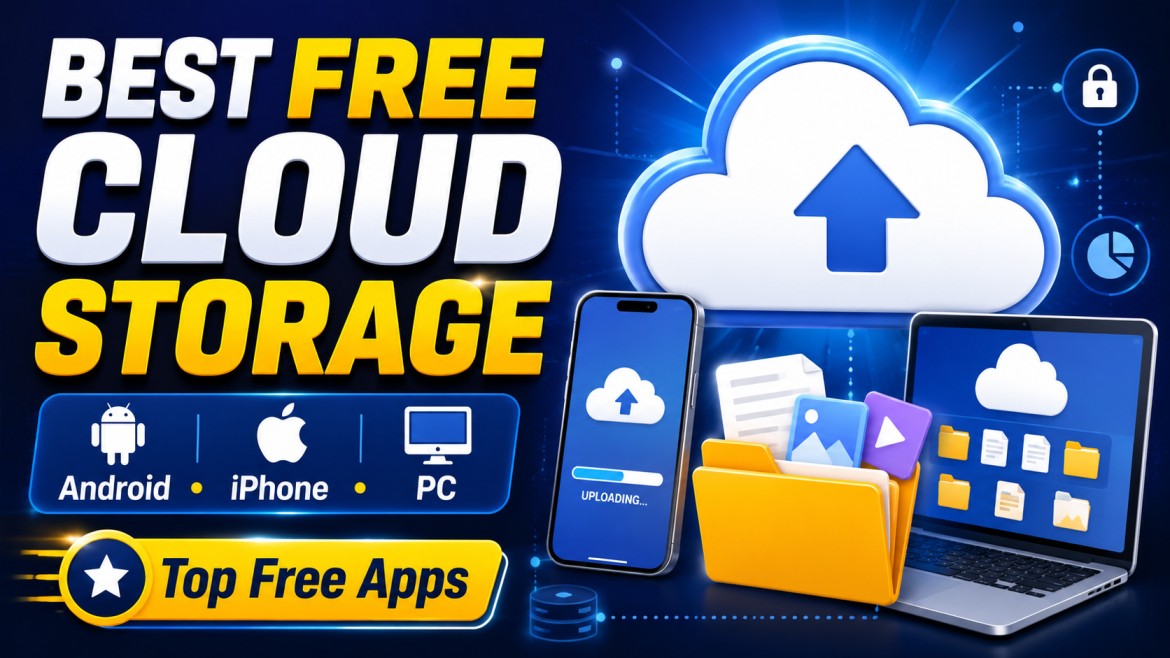
Cloud storage apps allow users to save photos, videos, documents, backups, and other files online instead of keeping everything only on one phone or computer.
Once uploaded, files can usually be accessed from multiple devices, shared with other people, and recovered when a phone is lost, damaged, or replaced.
Many cloud services offer a free plan, but the amount of storage, privacy protection, upload limits, device support, and backup features vary significantly.
This guide compares some of the best free cloud storage apps available in 2026.
Important: Nuvelloza.com is an independent informational website. We are not affiliated with Google, Microsoft, Apple, Dropbox, Proton, Box, pCloud, Sync.com, or any cloud-storage provider.
Best Free Cloud Storage Apps: Quick Comparison
| Service | Free storage | Best for | Main limitation |
|---|---|---|---|
| Google Drive | Up to 15 GB | Android, documents, sharing, Google users | Shared with Gmail and Google Photos |
| pCloud | Up to 10 GB | General file storage and media access | Full free amount may require account tasks |
| Box | 10 GB | Documents and collaboration | 250 MB upload limit on the free plan |
| OneDrive | 5 GB | Windows and Microsoft users | Shared Microsoft cloud quota |
| iCloud | 5 GB | iPhone, iPad, Mac, and Apple backups | Fills quickly with device and photo backups |
| Proton Drive | 5 GB | Privacy and encrypted storage | Less free storage than some competitors |
| Sync.com | 5 GB | Private file storage and sharing | Free plan has feature and device limits |
| Dropbox | 2 GB | Simple syncing and file sharing | Very small free-storage allowance |
Free-storage limits, features, promotions, and account conditions may change. Always check the provider’s current plan page before uploading important files.
What Is Cloud Storage?
Cloud storage is an online service that stores files on remote servers managed by a provider.
Users may be able to:
- Upload photos and videos
- Store documents
- Back up phone files
- Sync folders between devices
- Share files through links
- Collaborate on documents
- Access files from a browser
- Restore recently deleted files
- Keep selected files available offline
Cloud storage is useful, but it should not be the only copy of irreplaceable data.
For important family photos, legal documents, business records, or creative work, keep at least one additional backup on another service, computer, or external drive.
1. Google Drive
Best for: Android users, Google Docs, sharing, students, and general file storage
Google Drive is one of the most widely integrated cloud services for Android, Gmail, Google Photos, Docs, Sheets, and Slides.
Each standard Google Account includes up to 15 GB of free storage, shared across Google Drive, Gmail, and Google Photos.
Main features
- File and folder storage
- Android and iPhone apps
- Browser access
- Google Docs, Sheets, and Slides
- File sharing
- Collaborative editing
- Offline file access
- Photo and video storage through Google Photos
- Search and document preview
- Automatic backup options on supported devices
Advantages
- Generous free allowance compared with many major competitors
- Excellent collaboration tools
- Convenient for Android users
- Easy sharing through links
- Works on phones, tablets, Windows, Mac, and browsers
- Integrated with Gmail and Google Workspace tools
Limitations
The 15 GB allowance is not reserved only for Drive. It is shared with Gmail messages, email attachments, and Google Photos.
A user with many photos or large Gmail attachments may therefore run out of space even when the Drive folder itself is relatively small.
Best for
Google Drive is a strong choice for:
- Students
- Android users
- Shared documents
- Office files
- General backups
- Collaborative work
- People already using Gmail
2. pCloud
Best for: General file storage, media access, cross-device syncing, and users wanting more free space
pCloud offers up to 10 GB of free cloud storage and supports access from mobile devices, computers, and the web.
The full free allowance may require completing account steps such as verifying an email address or finishing beginner tasks.
Main features
- Android and iPhone apps
- Windows, Mac, and Linux support
- File sharing
- Photo and video backup
- Audio and media playback
- Offline access
- Folder syncing
- Public sharing links
- File previews
Advantages
- Up to 10 GB free
- Good cross-platform support
- Useful for photos, videos, and music
- No credit card needed for the free plan
- Easy access across multiple devices
Limitations
- The full free amount may need to be unlocked
- Some enhanced encryption features may require a paid option
- Paid storage and lifetime plans are promoted inside the service
- Users should check current file-history and recovery limits
Best for
pCloud is suitable for:
- Photos and media
- General file storage
- Users who want more free space than Dropbox
- People using several operating systems
3. Box
Best for: Documents, sharing, business-style collaboration, and light personal storage
Box offers a free Individual plan with 10 GB of storage. The current plan includes a 250 MB individual file-upload limit.
Main features
- File storage
- Folder sharing
- Document previews
- Mobile apps
- Browser access
- Collaboration
- Electronic-signature features
- Integrations with productivity tools
Advantages
- 10 GB free
- Useful for documents and PDFs
- Strong sharing and collaboration focus
- Suitable for personal or light professional use
- Available across major platforms
Limitations
The free plan’s 250 MB upload limit makes it less suitable for large videos, disk images, or high-resolution media files.
The free plan also has fewer file versions and advanced administrative features than paid business plans.
Best for
Box works well for:
- Documents
- PDFs
- Work files
- Small project folders
- Sharing files with colleagues
4. Microsoft OneDrive
Best for: Windows users, Word and Excel files, Microsoft 365 integration, and PC backups
A free Microsoft account includes 5 GB of cloud storage. That quota is used for OneDrive files and photos as well as certain Microsoft cloud data, including Outlook.com attachments.
OneDrive works on Windows, macOS, Android, and iOS.
Main features
- Windows integration
- Android and iPhone apps
- Photo backup
- File sharing
- Office document editing
- Browser access
- Folder synchronisation
- Personal Vault
- Document scanning
- Microsoft 365 integration
Advantages
- Built into modern Windows systems
- Excellent for Word, Excel, and PowerPoint users
- Easy syncing between a Windows computer and phone
- Good document collaboration
- Free web and mobile Microsoft productivity apps
Limitations
- Only 5 GB free
- Storage can be consumed by OneDrive files and Microsoft cloud attachments
- Full desktop Office applications generally require an eligible Microsoft 365 licence
- Large photo backups can fill the account quickly
Best for
OneDrive is ideal for:
- Windows users
- Microsoft Office files
- PC folder backup
- Students and office workers
- People already using Outlook or Microsoft accounts
5. Apple iCloud
Best for: iPhone, iPad, Mac, device backups, Apple Photos, and Apple users
Apple provides 5 GB of free iCloud storage when a user sets up iCloud.
That storage may be used for iCloud device backups, iCloud Photos, iCloud Drive, messages, and other synced Apple data.
Main features
- iPhone and iPad backup
- iCloud Photos
- iCloud Drive
- Contacts and calendar syncing
- Messages backup
- Notes
- Safari syncing
- Find My
- Apple-device integration
- Browser access through iCloud.com
Advantages
- Excellent integration with Apple devices
- Automatic iPhone and iPad backups
- Easy photo synchronisation
- Files appear across iPhone, iPad, and Mac
- Simple setup for Apple users
Limitations
- The free 5 GB fills quickly
- Device backup, photos, and files use the same allowance
- Less convenient for users primarily using Android or Windows
- Larger storage plans require iCloud+
Best for
iCloud is the natural option for:
- iPhone users
- iPad users
- Mac owners
- Apple Photos
- Device backups
- People fully using the Apple ecosystem
6. Proton Drive
Best for: Privacy, encrypted documents, confidential personal files, and secure sharing
Proton Drive provides 5 GB of free end-to-end encrypted cloud storage.
Proton says that files, file names, and related information are encrypted on the user’s device before upload.
Main features
- End-to-end encrypted storage
- Android and iPhone apps
- Web access
- Secure file sharing
- Encrypted links
- Photo backup
- Proton Docs
- File and folder storage
- Privacy-focused account controls
Advantages
- Strong privacy focus
- End-to-end encryption on the free plan
- Encrypted file sharing
- No advertising-based business model
- Useful for sensitive personal documents
- Based in Switzerland
Limitations
- 5 GB free
- Some advanced features and larger storage require payment
- Collaboration and app integration may be less extensive than Google Drive or OneDrive
- Users must protect their password and recovery information carefully
Best for
Proton Drive is especially useful for:
- Private documents
- Identity-document backups
- Personal records
- Confidential files
- Users who prioritise encryption over maximum free space
7. Sync.com
Best for: Privacy-focused file storage, encrypted sharing, and personal backups
Sync.com offers 5 GB of free cloud storage and supports up to five devices on its free plan. Apps are available for Windows, macOS, Android, iOS, and the web.
The service promotes end-to-end encryption and zero-knowledge authentication.
Main features
- Encrypted cloud storage
- Mobile and desktop applications
- File sharing
- Device syncing
- Browser access
- Folder collaboration
- Privacy-focused account controls
Advantages
- 5 GB free
- End-to-end encryption
- Support for major devices
- Useful for private document storage
- Up to five devices on the free plan
Limitations
- Smaller ecosystem than Google, Microsoft, or Apple
- Some offline, recovery, and advanced sharing tools require paid plans
- Free-account device limits apply
- Syncing very large collections may take time
Best for
Sync.com is suitable for:
- Sensitive personal files
- Private sharing
- Document backups
- Users who want encryption with desktop syncing
8. Dropbox
Best for: Simple file sharing, reliable synchronisation, and users who need only a small amount of space
Dropbox Basic provides 2 GB of free storage.
The free personal plan can be connected to up to three devices.
Main features
- File syncing
- Shared folders
- File links
- Camera uploads
- Document scanning
- Browser access
- Android and iPhone apps
- Windows and Mac support
Advantages
- Simple and well-known interface
- Good file syncing
- Easy link sharing
- Useful for small shared folders
- Works across major devices
Limitations
- Only 2 GB free
- Three-device limit on the free plan
- Photos and videos can consume the storage quickly
- Larger paid plans may be excessive for users needing only modest extra space
Best for
Dropbox is useful for:
- Small folders
- Sharing documents
- Light synchronisation
- Users already collaborating through Dropbox
Which Free Cloud Storage App Is Best?
There is no single best service for everyone.
Best overall free storage
Google Drive
It offers up to 15 GB and has excellent document, sharing, and collaboration tools. Remember that the space is shared with Gmail and Google Photos.
Best for the Apple ecosystem
iCloud
It is deeply integrated with iPhone, iPad, and Mac, although the free 5 GB can fill quickly.
Best for Windows and Office users
OneDrive
It works naturally with Windows and Microsoft productivity services.
Best for privacy
Proton Drive
It combines a free 5 GB allowance with end-to-end encryption and encrypted sharing.
Best free storage for documents
Box
It provides 10 GB, although its 250 MB upload limit makes it better for documents than large videos.
Best for more general free space
pCloud
It offers up to 10 GB after completing the applicable account steps.
Best for simple syncing
Dropbox
It remains easy to use, but its free 2 GB allowance is much smaller than most alternatives.
Best Cloud Storage by Use Case
| Need | Recommended service |
|---|---|
| Android phone backup | Google Drive and Google Photos |
| iPhone backup | iCloud |
| Windows file syncing | OneDrive |
| Private documents | Proton Drive or Sync.com |
| Free document storage | Box |
| Photos and media | Google Drive, pCloud, or iCloud |
| Small shared folders | Dropbox |
| Office collaboration | Google Drive or OneDrive |
| Maximum simplicity | Google Drive or Dropbox |
| Cross-platform storage | pCloud or Google Drive |
Are Free Cloud Storage Apps Safe?
Major providers use security controls such as encrypted connections, account authentication, and data-centre protections.
However, cloud security also depends on the user.
An account can still be compromised through:
- Weak passwords
- Reused passwords
- Phishing
- Stolen devices
- Fake login pages
- Malware
- Shared links
- Incorrect permissions
- Unprotected email accounts
For better security:
- Use a unique password
- Enable two-factor authentication
- Review connected devices
- Remove old sharing links
- Keep recovery details updated
- Lock the phone
- Avoid public computers for sensitive accounts
- Never share an OTP
- Download only official apps
End-to-End Encryption vs Standard Cloud Encryption
Many cloud services encrypt data while it is being transferred and stored.
End-to-end encrypted services add another layer by encrypting files before they leave the user’s device, so the service is designed not to have access to the readable content.
Proton Drive and Sync.com advertise end-to-end encrypted or zero-knowledge-style protection for user files.
This may be useful for confidential documents, but users should still keep a separate backup and protect account-recovery details.
What Should You Store in the Cloud?
Cloud storage is useful for:
- Photos
- Videos
- School documents
- Work files
- Scanned certificates
- Resumes
- Project files
- Travel documents
- Non-sensitive backups
- Shared family folders
Be more cautious with:
- Password lists
- Banking PINs
- Cryptocurrency recovery phrases
- Unencrypted medical records
- Full identity-document collections
- Confidential business files
- Highly sensitive legal documents
Sensitive files should be protected with strong account security and, where appropriate, additional encryption.
Cloud Storage Is Not the Same as a Complete Backup
A synchronised folder may copy accidental deletions or file changes across devices.
For important data, use the 3-2-1 backup principle:
- Keep at least three copies
- Store them on two different types of media or services
- Keep one copy separate from the main device
For example:
- One copy on your phone or computer
- One copy in cloud storage
- One copy on an external drive
How to Choose the Right Cloud Storage App
Consider these factors:
Free Storage Amount
Choose based on the type and size of files you store.
Documents need less space than high-resolution photos and videos.
Device Compatibility
Check whether the service supports:
- Android
- iPhone
- Windows
- Mac
- Linux
- Browser access
Automatic Backup
Some apps are better for automatic camera or device backup.
File-Upload Limits
A service may offer substantial total storage while limiting the size of each uploaded file.
For example, Box currently gives free individual users 10 GB but limits individual uploads to 250 MB.
Privacy
Review:
- Encryption
- Data processing
- Account recovery
- Sharing settings
- Privacy policy
- Two-factor authentication
Collaboration
Google Drive, OneDrive, Dropbox, and Box are particularly useful when multiple people need to access or edit files.
Paid Upgrade Cost
Check the actual price in your country before relying heavily on one provider.
How to Download Cloud Storage Apps Safely
Install apps through:
- Google Play Store
- Apple App Store
- Microsoft Store
- The provider’s official website
Verify:
- Developer name
- App icon
- Official website
- Privacy information
- Recent reviews
- Requested permissions
Avoid:
- Modified APKs
- “Unlimited storage free” apps
- Cracked premium versions
- Unknown backup applications
- Links sent through suspicious messages
Common Cloud Storage Problems
Storage Is Full
Try:
- Deleting duplicate photos
- Removing large videos
- Emptying the trash or recycle bin
- Deleting old email attachments
- Moving files to another backup
- Compressing archives
- Downloading files to an external drive
Remember that Google’s storage is shared with Gmail and Photos, while Microsoft’s free cloud allowance is shared with OneDrive files and certain Outlook attachments.
Files Are Not Syncing
Check:
- Internet connection
- Available cloud space
- Device storage
- Battery restrictions
- Background-data permissions
- Correct account
- App updates
- File-name restrictions
Upload Is Too Slow
Large videos may take a long time.
Try:
- Using reliable Wi-Fi
- Uploading smaller groups
- Keeping the app open
- Disabling battery-saving restrictions temporarily
- Uploading during off-peak hours
- Avoiding simultaneous downloads
File Was Deleted
Check the service’s trash, recycle bin, deleted-files section, or version history.
Recovery periods differ between free and paid plans.
Cannot Open a Shared File
Possible reasons include:
- Link expired
- Owner removed access
- Wrong Google, Microsoft, or Apple account
- File was deleted
- Download limit reached
- Organisation blocks external access
Frequently Asked Questions
Which cloud app gives the most free storage?
Among the major services listed here, Google provides up to 15 GB, while pCloud and Box offer up to 10 GB. Google’s allowance is shared with Gmail and Google Photos.
Is Google Drive completely free?
Google Drive offers free storage as part of a Google Account, but extra storage requires a Google One plan.
Is iCloud free on iPhone?
Yes. Apple provides 5 GB free, but device backups, iCloud Photos, and iCloud Drive share that allowance.
Which service is best for private files?
Proton Drive and Sync.com are strong privacy-focused options because they advertise end-to-end encrypted file storage.
Can cloud storage replace an external drive?
It can be part of a backup strategy, but important data should ideally exist in more than one place.
Can I use several free cloud services?
Yes. Users may keep different categories of files on different services. However, managing several accounts can become confusing, so keep an organised record of where files are stored.
Are digital files safe forever?
No provider can guarantee permanent availability. Accounts can be lost, files can be deleted, policies can change, and users can lose passwords. Keep additional backups.
Which app is best for photos?
Google Photos and Drive are convenient for Android, while iCloud Photos is best integrated with Apple devices. pCloud also offers phone photo backup.
Is Dropbox still free?
Yes. Dropbox Basic currently provides 2 GB of free storage.
Does OneDrive work on iPhone?
Yes. Microsoft states that OneDrive works on Windows, macOS, iOS, and Android.
Final Recommendation
For most people:
- Use Google Drive for documents, sharing, and general storage.
- Use iCloud when your main devices are from Apple.
- Use OneDrive when you work mainly on Windows and Microsoft Office.
- Use Proton Drive for private and sensitive personal files.
- Use pCloud or Box when you want up to 10 GB of additional free storage.
- Use Dropbox only when simple syncing matters more than free capacity.
Do not choose a service based only on the number of free gigabytes. Security, device support, backup behaviour, file limits, and ease of recovery matter just as much.
Disclaimer
This article is provided for general informational purposes only.
Nuvelloza.com is not affiliated with or endorsed by Google, Microsoft, Apple, Dropbox, Proton, Box, pCloud, Sync.com, Google Play, or the Apple App Store.
Storage allowances, device limits, upload limits, privacy features, pricing, subscriptions, recovery periods, and app availability may change without notice.
Always verify the current free plan and terms through the provider’s official website or app-store listing before uploading important files.

nuvelloza
Nuvelloza’s editorial team is responsible for researching, reviewing, and maintaining this guide.
More articles by this authorRelated guides
How to Check Whether an App Is Official Before Installing It
On this pageWhat Does “Official App” Mean?Why Should You Verify an App Before Installing It?15 Ways to Check Whether an App Is Official1.…
How to Cancel Hidden App Subscriptions on Android and iPhone
On this pageWhat Is a Hidden App Subscription?Why App Subscriptions Continue After UninstallingHow to Find Hidden SubscriptionsHow to Cancel an App Subscription on…
How to Identify Fake AI Apps: 15 Warning Signs Before Installing
On this pageWhat Is a Fake AI App?Why Can Fake AI Apps Be Dangerous?Personal information may be collectedLogin details may be stolenExpensive subscriptions…