On this page
App subscriptions are easy to forget. A user may start a free trial, subscribe through an app, uninstall the app, and assume the payment has stopped.
In many cases, uninstalling an application does not cancel its subscription. The subscription may continue renewing until it is cancelled through Google Play, Apple, the app’s website, PayPal, or another payment provider. Google specifically warns that uninstalling an app does not cancel its subscription.
This guide explains how to find and cancel hidden or forgotten app subscriptions on Android, iPhone, Google Payments, PayPal, and other services.
Important: Cancelling a subscription normally stops future renewals. It does not always provide an automatic refund for charges that have already been processed.
What Is a Hidden App Subscription?
A hidden app subscription is a recurring payment that a user may not immediately notice or remember.
It may come from:
- A free trial that changed into a paid plan
- An app that was deleted without cancelling the subscription
- A subscription purchased through another Google or Apple account
- A service billed directly through its website
- A recurring PayPal payment
- A family member using a shared payment method
- A yearly renewal that is easy to forget
- A subscription listed under an unfamiliar company name
- An app that changed its name
- A trial that renewed earlier than expected
The subscription may not be truly hidden. It may simply appear in a different account, store, payment service, or billing statement.
Why App Subscriptions Continue After Uninstalling
Deleting an app removes it from the device, but it usually does not cancel the billing agreement.
The payment is managed separately through:
- Google Play
- Apple
- PayPal
- The app developer’s website
- A card or bank payment agreement
- A mobile carrier
- Another payment platform
This means a subscription can continue even when the app is no longer installed.
How to Find Hidden Subscriptions
Before cancelling anything, identify where the payment is coming from.
Check the following places:
- Google Play subscriptions
- Apple subscriptions
- Google Payments
- PayPal automatic payments
- Email receipts
- Bank and card statements
- The app developer’s website
- Other Google or Apple accounts
- Family accounts
- Mobile carrier bills
How to Cancel an App Subscription on Android
Subscriptions purchased through Google Play can be managed from the Google Play subscription settings.
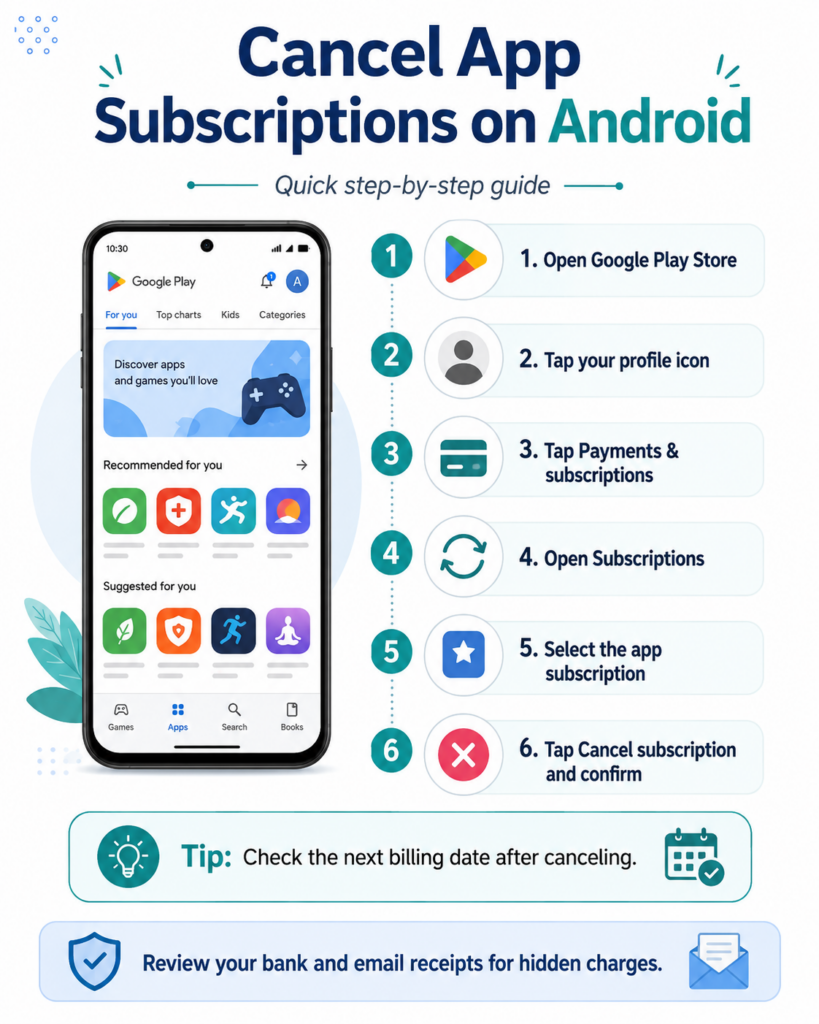
Method 1: Cancel through the Google Play Store
- Open the Google Play Store.
- Tap your profile picture in the top-right corner.
- Tap Payments & subscriptions.
- Tap Subscriptions.
- Select the subscription you want to stop.
- Tap Cancel subscription.
- Choose a reason if requested.
- Follow the on-screen instructions.
- Check that the subscription now shows a cancellation or expiry date.
Google’s current instructions say to open Google Play subscriptions, select the subscription, tap Cancel subscription, and follow the instructions.
Method 2: Cancel through a web browser
You can also manage Google Play subscriptions from a computer or mobile browser.
- Sign in to Google Play using the correct Google account.
- Open the subscriptions section.
- Find the subscription.
- Select Manage.
- Click Cancel subscription.
- Follow the confirmation steps.
Google also allows subscriptions to be managed from a computer.
What happens after cancelling?
In many cases, access continues until the end of the current paid period.
For example, if the subscription is paid until 30 August and you cancel on 10 August, the service may remain available until 30 August.
Check the exact expiry date shown in the subscription details.
What to Do If the Android Subscription Is Missing
A subscription may be missing because you are signed in to the wrong Google account.
Try these steps:
- Open Google Play.
- Tap your profile picture.
- Switch to another Google account.
- Open Payments & subscriptions.
- Check Subscriptions again.
Google advises users to try switching accounts when a subscription cannot be found.
Also check:
- Old Gmail accounts
- Work or school Google accounts
- A family member’s account
- Google Payments
- Email receipts
- The app’s website
How to Cancel an App Subscription on iPhone
Subscriptions purchased through Apple can be cancelled from the iPhone Settings app.
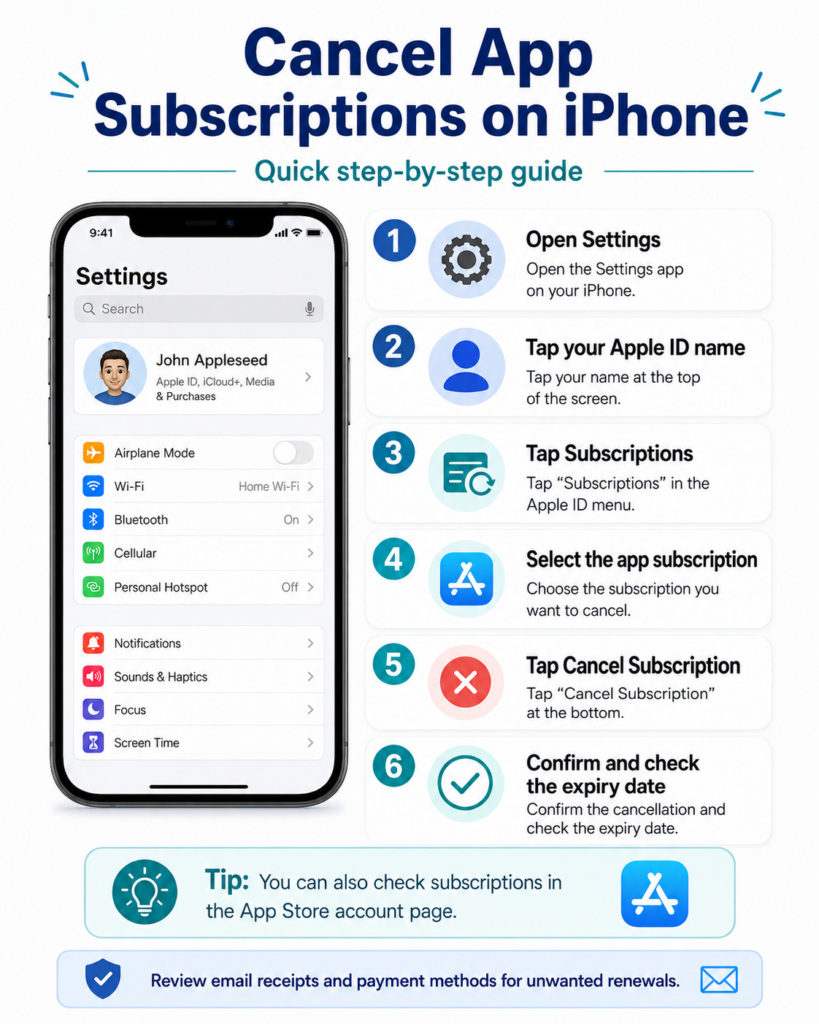
Method 1: Cancel through iPhone Settings
- Open Settings.
- Tap your name at the top.
- Tap Subscriptions.
- Select the subscription you want to cancel.
- Tap Cancel Subscription.
- Confirm the cancellation.
Apple says that if there is no cancellation button, or if an expiry message appears in red, the subscription may already be cancelled.
Method 2: Cancel through the App Store
Depending on the current iOS version, users may also be able to access subscriptions through the App Store account page.
- Open the App Store.
- Tap your profile picture.
- Open the subscription section.
- Select the subscription.
- Tap Cancel Subscription.
- Confirm the cancellation.
Apple states that subscriptions purchased from Apple or inside App Store apps can be managed directly through the device.
What to Do If the iPhone Subscription Is Missing
A missing Apple subscription may be connected to another Apple Account.
Check:
- The Apple Account currently signed in
- An older Apple Account
- A family member’s account
- Email receipts from Apple
- The app developer’s website
- A payment made outside the App Store
A subscription purchased directly from a company website may not appear in Apple’s subscription list.
In that case, sign in to the service’s website and open its billing or account settings.
How to Find Subscriptions in Google Payments
Some Google-related recurring payments can be managed through the Google Payments profile.
Google says its payments profile can be used to find, manage, cancel, and pay early for recurring charges on subscriptions and other services.
To check:
- Sign in to your Google Payments profile.
- Open Subscriptions & services.
- Review the listed products.
- Select the subscription or recurring service.
- Look for management or cancellation options.
- Follow the instructions provided.
Google also allows users to review orders and subscriptions through the payments centre.
How to Cancel a Recurring Payment on PayPal
Some app subscriptions are billed through PayPal rather than Google Play or Apple.
To check PayPal automatic payments:
- Sign in to PayPal.
- Open Settings.
- Select Payments.
- Open Automatic Payments, Subscriptions, or Saved businesses, depending on the version shown.
- Select the company or merchant.
- Choose the option to cancel the automatic payment.
- Confirm the change.
PayPal’s official instructions say users can open Settings, select Payments, choose Automatic Payments, select the merchant, and cancel the payment agreement.
Important: Cancelling an automatic payment in PayPal stops future authorised payments through that agreement. It may not cancel an account or service directly with the merchant. Check the app or service account as well.
How to Cancel a Subscription Purchased on a Website
Some apps ask users to subscribe directly through their website.
These payments may not appear in Google Play or Apple subscriptions.
To cancel:
- Open the app developer’s official website.
- Sign in using the email address used for the purchase.
- Open Account, Billing, Membership, or Subscription.
- Select the current plan.
- Choose Cancel, Turn off renewal, or a similar option.
- Complete all confirmation steps.
- Save the cancellation email or take a screenshot.
If no cancellation option is visible, contact the company through its official support page.
Do not use contact details from suspicious emails or random search advertisements.
How to Identify a Subscription from a Bank Statement
A recurring charge may appear under a company name that is different from the app name.
To investigate:
- Open your bank or card statement.
- Note the exact merchant name.
- Check the amount and date.
- Search your email for the merchant name or amount.
- Review Google Play and Apple purchase histories.
- Check PayPal transactions.
- Ask family members who use the same payment method.
- Contact the merchant using verified contact details.
Do not immediately assume the payment is fraud. Some legitimate subscriptions use a parent company or payment processor name.
However, report the charge promptly if you cannot identify it.
Search Your Email for Subscription Receipts
Email receipts are one of the easiest ways to find forgotten subscriptions.
Search for terms such as:
- Subscription
- Renewal
- Free trial
- Membership
- Invoice
- Receipt
- Payment successful
- Auto-renew
- Google Play
- Apple
- PayPal
- Monthly plan
- Annual plan
Also search for the amount shown on your bank statement.
Check spam, promotions, trash, and old email accounts.
Check Multiple Google and Apple Accounts
Many users have more than one account.
A subscription may be connected to:
- A personal Gmail account
- A work Gmail account
- An old Gmail account
- A second Apple Account
- A family member’s account
- An account created for another country or region
Switch accounts and check each subscription list carefully.
Does Deleting an App Cancel the Subscription?
No, not usually.
Deleting the app only removes the application from your device.
Google explicitly states that if an app is uninstalled, the subscription still needs to be cancelled or the user may continue to be charged.
Always cancel through the store, website, or payment provider.
Does Cancelling Stop the App Immediately?
Not always.
Many subscriptions remain active until the end of the current billing period.
The cancellation page should show:
- The cancellation date
- The expiry date
- Whether access continues
- Whether renewal is disabled
- Whether the plan can be restarted
Save this information in case the service charges you again.
How to Confirm That a Subscription Was Cancelled
After cancelling, confirm the result.
Look for:
- A cancellation confirmation page
- An expiry date
- An email confirmation
- “Cancelled” status
- “Expires on” status
- No future renewal date
- The automatic payment marked inactive
Take a screenshot or save the email.
Check your bank statement again after the expected renewal date.
How to Cancel a Free Trial Before It Charges You
Free trials may automatically convert into paid plans.
To avoid an unwanted charge:
- Check the trial end date.
- Cancel before the renewal deadline.
- Confirm whether access ends immediately or continues until the end of the trial.
- Save the cancellation confirmation.
- Add a calendar reminder several days before future trials end.
Do not wait until the final minute. Time zones and payment-processing rules may affect the deadline.
How to Request a Refund
Cancelling a subscription and requesting a refund are separate actions.
Apple purchases
Apple says some App Store and iTunes Store purchases may be eligible for a refund. Users can submit a refund request through Apple’s official refund process.
Google Play purchases
Google Play provides refund options depending on the product, timing, reason, and applicable rules.
Open your Google Play order history or official support options and follow the available refund process.
PayPal payments
For a completed PayPal payment, PayPal advises contacting the seller for a refund. If the issue is not resolved, eligible users may be able to open a dispute within the applicable timeframe.
Important: A refund is not guaranteed simply because a subscription was forgotten.
What to Do If the Company Keeps Charging You
If charges continue after cancellation:
- Confirm the cancellation date.
- Check whether the charge was already pending.
- Check whether another subscription exists.
- Review all Google and Apple accounts.
- Contact the merchant.
- Provide the cancellation confirmation.
- Contact the payment provider if necessary.
- Contact your bank or card provider for an unrecognised or disputed charge.
- Keep screenshots, emails, receipts, and transaction details.
Do not delete evidence before the issue is resolved.
Should You Block the Card?
Blocking or replacing a card should not be the first cancellation method.
A card replacement may not always stop a recurring payment, and the company may still treat the account as unpaid.
First try to:
- Cancel with the app store
- Cancel through the company
- Disable the PayPal agreement
- Contact the payment provider
- Dispute an unauthorised charge when appropriate
Contact your bank if you believe the payment is fraudulent or the merchant continues charging after a valid cancellation.
How to Prevent Hidden App Subscriptions
Follow these habits:
- Read trial terms before subscribing
- Check whether the price is weekly, monthly, or yearly
- Set a reminder before the trial ends
- Use one main account for subscriptions
- Review subscriptions every month
- Read bank and card statements
- Keep purchase receipts
- Avoid subscribing through unfamiliar websites
- Cancel before deleting an app
- Check family purchases
- Use app-store payment systems where practical
- Avoid sharing payment accounts unnecessarily
Monthly Subscription Checklist
Once a month, review:
- Google Play subscriptions
- Apple subscriptions
- Google Payments
- PayPal automatic payments
- Bank statements
- Credit-card statements
- Email receipts
- Mobile carrier bills
- Family account purchases
- Website-based memberships
This simple check can help prevent months of unwanted charges.
Frequently Asked Questions
Why can’t I find my subscription in Google Play?
You may be signed in to the wrong Google account, or the subscription may have been purchased directly from the app’s website.
Switch Google accounts and check Google Payments, email receipts, and your bank statement.
Why can’t I find my subscription on iPhone?
The subscription may be connected to another Apple Account or purchased outside the App Store.
Check old Apple Accounts, email receipts, PayPal, and the company’s website.
Will uninstalling an app stop payment?
No. Uninstalling an app normally does not cancel the subscription.
Cancel the subscription separately.
Can I cancel a subscription after deleting the app?
Yes. Open Google Play or Apple subscription settings and cancel it from there.
You usually do not need to reinstall the app.
Can I still use the app after cancelling?
Often, yes. Many subscriptions remain active until the current billing period ends.
Check the expiry date shown after cancellation.
Why is there no Cancel button on iPhone?
Apple says that if there is no Cancel button or a red expiry message appears, the subscription may already be cancelled.
Can I get a refund for a forgotten subscription?
Possibly, but approval depends on the platform, merchant, timing, and circumstances.
Submit a refund request through the platform that processed the payment.
Can a subscription use a different name on my bank statement?
Yes. The charge may use the developer’s company name, parent company, or payment processor rather than the app name.
Should I cancel through the app or through the app store?
Cancel through the platform that processed the payment.
For example:
- Google Play purchase: cancel through Google Play
- Apple purchase: cancel through Apple subscriptions
- Website purchase: cancel through the company website
- PayPal payment: check the merchant account and PayPal automatic payments
Final Words
Hidden app subscriptions are often caused by forgotten free trials, multiple accounts, deleted apps, yearly renewals, or payments made outside the app store.
Start by checking Google Play, Apple subscriptions, Google Payments, PayPal, email receipts, and bank statements.
Remember that deleting an app normally does not cancel its subscription. Always complete the cancellation process and save proof showing the expiry or cancellation date.
Reviewing your recurring payments once a month can help prevent unwanted renewals and make it easier to identify unfamiliar charges.
Disclaimer: This guide provides general information. Subscription menus, refund rules, billing options, and cancellation procedures may change. Always follow the latest instructions shown by the official store, payment provider, app developer, or financial institution.

nuvelloza
Nuvelloza’s editorial team is responsible for researching, reviewing, and maintaining this guide.
More articles by this authorRelated guides
How to Check Whether an App Is Official Before Installing It
On this pageWhat Does “Official App” Mean?Why Should You Verify an App Before Installing It?15 Ways to Check Whether an App Is Official1.…
How to Identify Fake AI Apps: 15 Warning Signs Before Installing
On this pageWhat Is a Fake AI App?Why Can Fake AI Apps Be Dangerous?Personal information may be collectedLogin details may be stolenExpensive subscriptions…
Best Password Manager Apps for Android, iPhone and Computer in 2026
On this pageBest Password Manager Apps: Quick ComparisonWhat Is a Password Manager?Why Should You Use a Password Manager?1. BitwardenMain featuresAdvantagesLimitationsBest for2. Proton PassMain…