On this page
Artificial intelligence apps can help users write content, edit photos, answer questions, translate languages, create images, generate videos, and complete many everyday tasks.
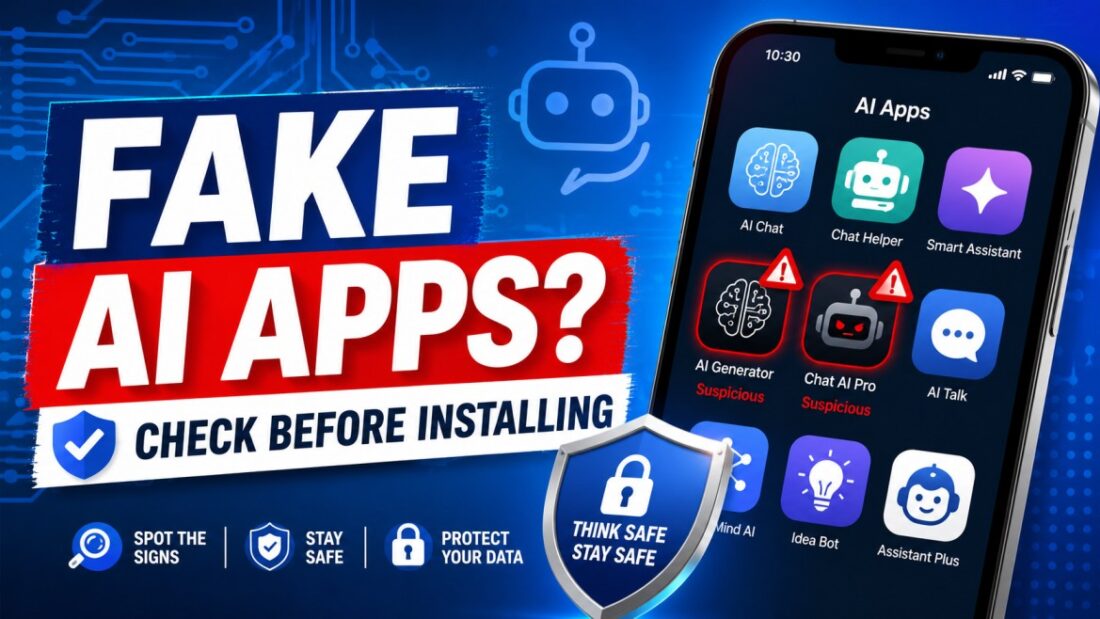
However, the growing popularity of artificial intelligence has also attracted scammers and dishonest developers. Some create fake or misleading AI applications that copy the name, logo, screenshots, or description of a popular service.
These apps may charge expensive subscriptions, collect personal data, display excessive advertisements, redirect users to unsafe websites, or steal account information.
Before installing an AI app, users should check who developed it, what permissions it requests, how much it costs, and how it handles personal information.
This guide explains how to identify fake AI apps on Android and iPhone, the warning signs to look for, and what to do after installing a suspicious application.
Important: An unfamiliar AI app is not automatically fake. Check several warning signs together before deciding whether an application is trustworthy.
What Is a Fake AI App?
A fake AI app is an application that misrepresents its identity, developer, features, pricing, or purpose.
A fake or misleading AI app may:
- Pretend to be an official app from a well-known AI company
- Copy another application’s name or logo
- Promise features that it cannot provide
- Hide expensive subscription charges
- Display fake login screens
- Collect unnecessary personal information
- Redirect users to suspicious websites
- Show excessive or deceptive advertisements
- Ask users to download files outside the official app store
- Offer fake premium or lifetime access
Some suspicious applications provide basic AI features so that they appear legitimate. However, they may still use misleading branding, hidden payments, or unsafe data-collection practices.
Why Can Fake AI Apps Be Dangerous?
Installing a fake AI app can create several risks.
Personal information may be collected
A suspicious app may request access to your contacts, photographs, microphone, location, files, or other personal data.
This information may be collected for purposes unrelated to the app’s advertised features.
Login details may be stolen
Some fake apps show login pages that look similar to Google, Apple, Microsoft, ChatGPT, or other popular services.
When users enter their email address and password, that information may be sent to scammers.
Expensive subscriptions may be activated
A misleading app may advertise a free trial but begin charging a weekly, monthly, or annual subscription after a short period.
Some users only notice the charge after checking their bank or app-store purchase history.
Private files may be exposed
Many AI apps allow users to upload:
- Photographs
- Identification documents
- Business files
- Voice recordings
- Videos
- PDF documents
- Personal conversations
Uploading sensitive information to an untrusted service can create privacy and security risks.
The phone may display unwanted advertisements
Some unsafe applications display frequent pop-ups, redirect the browser, send spam notifications, or install additional unwanted software.
15 Ways to Identify a Fake AI App
1. Check the exact developer name
The developer name is one of the most important details on an app-store listing.
Do not rely only on the application’s title, icon, or screenshots. A fake app may use a professional-looking name that is slightly different from the real company.
Examples of suspicious names may include:
- Open Al instead of OpenAI
- Official AI Chat
- Premium GPT Assistant
- AI Technology Services
- Gemini Chat Pro
- Smart AI Official
Visit the company’s official website and check the exact developer name used for its official Android or iPhone application.
A professional name does not automatically prove that the developer is genuine.
2. Use the official company website
When possible, visit the AI company’s official website and use the download link provided there.
The official website may link directly to the correct Google Play Store or Apple App Store page.
Be cautious when an app is promoted through:
- Random websites
- Social-media messages
- Email advertisements
- Messaging groups
- Sponsored pop-ups
- Unverified YouTube descriptions
- Download pages offering modified apps
Avoid downloading AI applications from unknown websites that promise:
- Free premium access
- Unlimited AI credits
- Lifetime subscriptions
- Modified APK files
- Cracked versions
- Unreleased features
- No payment forever
These claims are often used to persuade users to download unsafe files.
3. Examine the app name carefully
Fake apps often use names that look similar to popular services.
Check for:
- Misspelled brand names
- Extra spaces
- Unusual punctuation
- Similar-looking letters
- Additional words such as “Official,” “Premium,” “Pro,” or “Plus”
- A famous AI name followed by an unrelated developer
An application can use words such as “AI,” “GPT,” “Chat,” or “Assistant” without being officially connected to a well-known AI company.
Do not assume that every app containing a famous product name is official.
4. Compare the icon and screenshots
A copied logo does not prove that an app is genuine.
Compare the app-store listing with the branding shown on the company’s official website.
Look for:
- Incorrect logo colours
- Blurry icons
- Stretched images
- Poorly designed screenshots
- Spelling mistakes
- Screenshots belonging to another application
- Features not mentioned on the official website
- Fake awards or approval badges
- Claims such as “Number One Official AI App”
Some fake apps have polished screenshots, so appearance should never be your only check.
5. Read the full app description
Do not install an app after reading only its title and first sentence.
A suspicious description may include:
- Poor spelling and grammar
- Repeated keywords
- Unrealistic promises
- Claims of guaranteed income
- Claims that the AI is always accurate
- No explanation of who operates the service
- No information about privacy or data handling
- References to a different app or company
- Pressure to install immediately
Be cautious of statements such as:
- Download before access closes
- Limited accounts are available
- Install now to receive lifetime access
- Premium AI is completely free
- This offer ends today
- Guaranteed results for everyone
Urgency is often used to stop users from checking the app carefully.
6. Read recent user reviews
Reviews can help identify problems, but they should not be trusted blindly.
Fake or manipulated reviews may:
- Use very similar wording
- Give five stars without explaining anything
- Repeat marketing phrases
- Appear in large numbers over a short period
- Mention features that do not exist
- Contain unrelated sentences
Sort reviews by Most Recent and read both positive and negative feedback.
Look for repeated complaints about:
- Unexpected payments
- Difficult subscription cancellation
- Too many advertisements
- Login problems
- Features not working
- Misleading screenshots
- Poor customer support
- The app copying another service
- Personal information concerns
A high rating or large download count does not always guarantee that an app is safe.
7. Check the release date and update history
A newly released application pretending to represent a long-established AI company deserves additional attention.
Check:
- When the app was first released
- When it was last updated
- Whether updates are released regularly
- Whether update notes explain meaningful changes
- Whether the developer has other legitimate apps
An old or rarely updated application is not automatically fake. However, abandoned apps may contain unresolved security, privacy, or compatibility problems.
8. Review the requested permissions
App permissions should match the application’s actual purpose.
For example:
- A voice assistant may need microphone access.
- An image editor may need access to selected photographs.
- A navigation app may need location access.
However, a basic AI writing app may not need access to:
- Contacts
- Call logs
- SMS messages
- Precise location
- Device administrator controls
- Accessibility services
- All files on the device
- The ability to install unknown applications
Do not approve a permission simply because the app says it is required.
Where available, choose limited options such as:
- Allow only while using the app
- Select specific photos
- Ask every time
- Do not allow
- Approximate location only
If the app refuses to work without an unrelated permission, consider removing it.
9. Read the privacy policy
Open the privacy-policy link shown on the app-store page.
A useful privacy policy should explain:
- What information the app collects
- Why the information is collected
- Whether information is shared with other companies
- How uploaded files are handled
- How long user information is kept
- How users can request deletion
- How to contact the developer
- Whether conversations are used to improve the service
Warning signs include:
- No privacy-policy link
- A broken link
- A policy written for a different business
- No company name
- No contact information
- A very short generic policy
- Contradictory information
- A policy hosted on an unrelated website
Do not upload private documents until you understand how the app stores and uses them.
10. Check the developer’s website and contact details
Open the developer information shown in the app store.
Check whether the developer provides:
- A working website
- A support email address
- A privacy-policy page
- Clear company information
- Instructions for deleting an account
- Help or support documentation
Warning signs may include:
- An empty website
- A website containing only one page
- A domain unrelated to the app
- Broken support links
- Copied legal pages
- No contact method
- A support email that does not work
A free Gmail or Outlook address does not automatically mean the app is fake. Small independent developers may use free email services.
However, an application claiming to represent a major company should normally use an official company domain.
11. Check the subscription price carefully
Some AI apps advertise themselves as free but immediately display a paid subscription screen.
Before starting a free trial, check:
- The length of the trial
- The weekly price
- The monthly price
- The annual price
- The renewal date
- The cancellation method
- Which features require payment
- Whether the app offers refunds
- Whether payment is processed through the official app store
A weekly subscription may appear inexpensive but can become costly over a full year.
Do not enter card details on an unfamiliar external payment page opened by a suspicious app.
12. Be cautious of impossible promises
AI tools have limitations. Be careful when an application claims it can:
- Guarantee trading profits
- Predict lottery results
- Guarantee employment
- Recover every deleted account
- Diagnose every medical condition accurately
- Hack passwords or Wi-Fi networks
- Generate unlimited money
- Guarantee legal outcomes
- Remove every virus instantly
- Create completely undetectable academic work
- Guarantee social-media followers
Applications making extreme promises may be designed to collect payments, personal information, or account credentials.
13. Be careful with advertisements and sponsored results
An application appearing in an advertisement does not automatically mean it is official.
Scammers may pay to promote fake websites or applications using the name of a popular service.
Before clicking a sponsored result:
- Check the website domain
- Check the spelling carefully
- Avoid shortened links
- Confirm the developer’s identity
- Compare the page with the official company website
Do not install an app simply because it appears at the top of a search page.
14. Never install unknown APK or configuration files
Android users may see websites offering an APK file instead of a Google Play Store download.
iPhone users may be asked to install:
- Configuration profiles
- Enterprise certificates
- Device-management profiles
- Unknown web apps
Avoid installing these files unless you fully trust and understand the source.
A suspicious download page may ask you to:
- Disable security protection
- Turn off Play Protect
- Enable installation from unknown sources
- Approve device administrator access
- Install a configuration profile
- Ignore a browser warning
These instructions are major warning signs.
15. Search for independent information
Before installing an unfamiliar AI app, search for:
- The app name
- The developer name
- The company website
- Privacy concerns
- Subscription complaints
- Scam reports
- Security reviews
- Data-breach reports
Do not rely entirely on reviews shown inside the app store.
Independent information can help identify copied branding, hidden charges, or previous complaints.
However, remember that a lack of online information does not automatically prove that an app is unsafe. It may simply be new or created by a small developer.
How to Check an AI App on Android
Android users can follow these steps before installing an app:
- Open the Google Play Store.
- Search for the application.
- Open the full app listing.
- Check the developer’s exact name.
- Read the “About this app” section.
- Review the data-safety information.
- Check the requested permissions.
- Read recent positive and negative reviews.
- Open the developer’s website and privacy policy.
- Check the subscription price before starting a trial.
After installation, review the permissions through your phone’s Settings menu.
You can remove permissions that are unnecessary for the app’s main function.
How to Check an AI App on iPhone
iPhone users can follow these steps:
- Open the Apple App Store.
- Search for the AI application.
- Open the complete app listing.
- Confirm the seller or developer name.
- Review the app privacy information.
- Read the in-app purchase prices.
- Open the developer’s website.
- Read recent reviews.
- Compare the listing with the company’s official website.
- Check app permissions after installation.
You can review permissions for the microphone, camera, photos, contacts, location, and other features through the iPhone Settings app.
What to Do If You Installed a Suspicious AI App
If you believe you installed a fake or unsafe AI application, take action quickly.
Uninstall the application
Remove the app from your phone.
Do not continue using it while you investigate the problem.
Cancel active subscriptions
Uninstalling an application may not automatically cancel its subscription.
Check your subscriptions through:
- Google Play Store on Android
- Apple ID subscriptions on iPhone
Cancel any subscription you did not intend to keep.
Change exposed passwords
Change your password if you entered login information into the suspicious application.
Use a new and unique password that you have not used on another website.
Start with important accounts such as:
- Primary email
- Google account
- Apple account
- Banking services
- Social-media accounts
- Cloud-storage accounts
Enable two-factor authentication
Turn on two-factor authentication or two-step verification for important accounts.
This adds another layer of protection if someone obtains your password.
Review app permissions
Check whether the app had access to:
- Photos
- Contacts
- Microphone
- Camera
- Location
- Files
- Notifications
Remove any permissions that remain connected to the service.
Check payment history
Review your:
- Google Play purchase history
- Apple purchase history
- Bank transactions
- Credit-card statement
- Online payment accounts
Report unfamiliar charges to the relevant app store, payment provider, or bank.
Remove unknown files or profiles
Delete any APK file, configuration profile, device-management profile, or certificate installed by the suspicious service.
Scan the device
Android users can check whether Google Play Protect is enabled and run an app scan.
If the phone continues showing unwanted advertisements, browser redirects, or unusual behaviour, consider using a trusted mobile-security tool or obtaining professional technical support.
Report the app
Report suspicious applications through the Google Play Store or Apple App Store.
Include clear details about:
- Misleading branding
- Hidden charges
- Fake login pages
- Harmful behaviour
- Privacy concerns
- Features that do not match the description
How to Reduce the Risk of Fake AI Apps
Follow these basic safety practices:
- Download apps from official app stores
- Use official company website links
- Keep the phone’s operating system updated
- Keep automatic app updates enabled
- Review permissions regularly
- Avoid modified or cracked applications
- Use unique passwords
- Enable two-factor authentication
- Avoid uploading sensitive files unnecessarily
- Check subscription terms before starting a trial
- Read recent reviews
- Remove apps you no longer use
Information You Should Avoid Uploading to Untrusted AI Apps
Avoid uploading highly sensitive information unless you understand and trust the service’s privacy practices.
Examples include:
- Passport images
- Identity cards
- Tax documents
- Bank statements
- Credit-card details
- Medical records
- Passwords
- Verification codes
- Private business files
- Confidential work documents
- Personal photographs
- Documents containing addresses or signatures
Even a legitimate AI service may store or process uploaded information. Always review its current privacy and data-retention policies.
Quick Fake AI App Checklist
Before installing an AI app, ask these questions:
- Is the developer’s name correct?
- Is the app linked from the official company website?
- Does the name contain suspicious spelling changes?
- Do the permissions match the app’s function?
- Is the privacy policy complete and relevant?
- Are the subscription terms clearly displayed?
- Do recent reviews mention unexpected charges?
- Does the developer have a working website?
- Is the app making unrealistic promises?
- Is it asking me to install files outside the app store?
If several answers raise concerns, avoid installing the application.
Frequently Asked Questions
Are all unofficial AI apps fake?
No. Independent developers can legally create AI-powered applications using their own technology or authorised services.
However, an independent app should not falsely claim to be the official product of another company.
Can fake AI apps appear in official app stores?
Yes. Official app stores use security and review systems, but misleading or unsafe applications may still appear temporarily.
Users should continue checking the developer, permissions, reviews, pricing, and privacy information.
Is an AI app safe if it has thousands of reviews?
Not necessarily.
Reviews may be manipulated, outdated, or related to an earlier version of the application. Read recent detailed reviews and check information from other sources.
Is a free AI app always suspicious?
No. Many legitimate AI apps offer free plans supported by usage limits, advertisements, paid upgrades, or optional subscriptions.
The important issue is whether the pricing and limitations are explained clearly.
Should an AI chatbot need access to my contacts?
A basic text-based AI chatbot usually does not need access to your entire contacts list.
Only allow permissions that are necessary for features you intentionally use.
Can uninstalling an app stop subscription payments?
Not always.
You normally need to cancel the subscription separately through Google Play or your Apple ID subscription settings.
What should I do if I entered my password into a fake app?
Change the password immediately, log out of unknown devices, and enable two-factor authentication.
Change any other account that used the same password.
Final Words
Fake AI apps can look convincing because scammers may copy names, logos, screenshots, and descriptions from legitimate services.
The safest approach is to verify the developer, use links from official websites, inspect permissions, read recent reviews, understand subscription charges, and avoid uploading sensitive information unnecessarily.
Do not install an application simply because it uses a familiar AI name or appears at the top of a search result.
Taking a few minutes to check the app before installing it can help protect your device, personal information, accounts, and money.
Disclaimer: This article provides general information about app safety and online security. Application features, prices, privacy practices, and store listings may change over time. Always review the latest information provided by the developer and the official app store before installing or purchasing an application.

nuvelloza
Nuvelloza’s editorial team is responsible for researching, reviewing, and maintaining this guide.
More articles by this authorRelated guides
How to Check Whether an App Is Official Before Installing It
On this pageWhat Does “Official App” Mean?Why Should You Verify an App Before Installing It?15 Ways to Check Whether an App Is Official1.…
How to Cancel Hidden App Subscriptions on Android and iPhone
On this pageWhat Is a Hidden App Subscription?Why App Subscriptions Continue After UninstallingHow to Find Hidden SubscriptionsHow to Cancel an App Subscription on…
Best Password Manager Apps for Android, iPhone and Computer in 2026
On this pageBest Password Manager Apps: Quick ComparisonWhat Is a Password Manager?Why Should You Use a Password Manager?1. BitwardenMain featuresAdvantagesLimitationsBest for2. Proton PassMain…