On this page
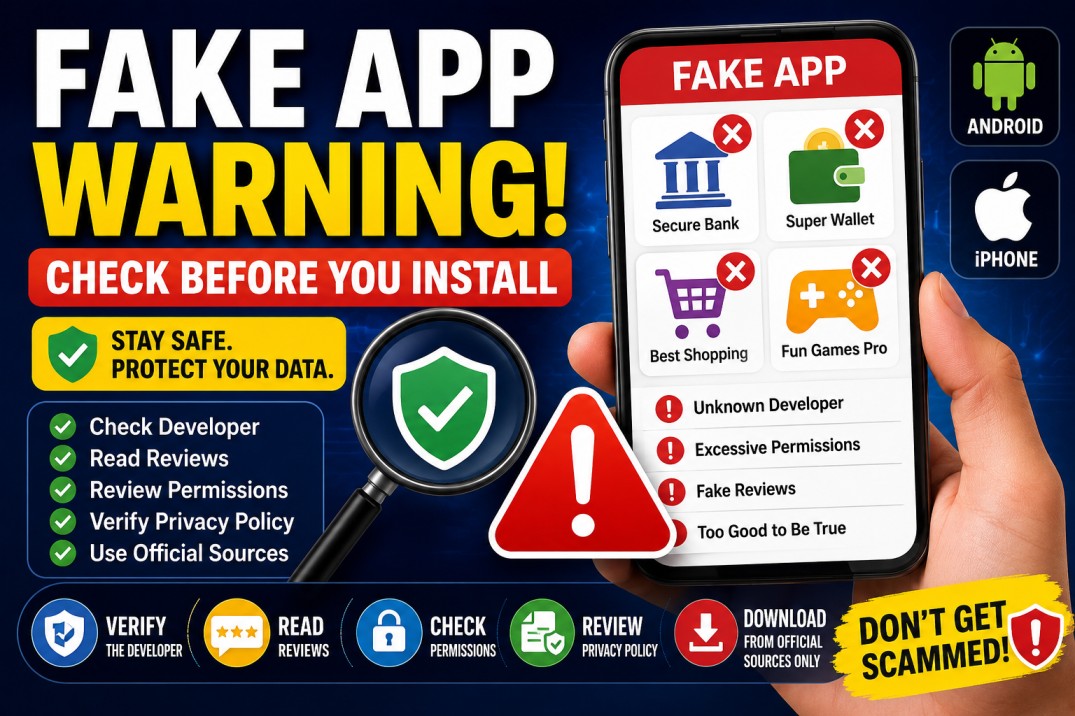
Fake mobile apps are designed to look like genuine banking, shopping, social media, government, gaming, utility, or artificial intelligence applications.
Some fake apps display excessive advertisements. More dangerous versions may steal passwords, banking details, photos, contacts, messages, or one-time passwords. Others may secretly subscribe users to paid services, install additional malware, or take control of important phone functions.
Fake apps often copy the name, logo, screenshots, and description of a trusted application. A few quick checks before installation can significantly reduce your risk.
Important: Nuvelloza.com is an independent informational website. We are not affiliated with Google, Apple, any app developer, bank, government authority, or cybersecurity company.
Fake App Safety Checklist
Before installing an app, check:
- App developer’s exact name
- Official website and app-store links
- Number and quality of reviews
- Download history where displayed
- App description and spelling
- Requested permissions
- Privacy and data-safety information
- Recent update history
- Contact details
- Subscription prices
- Whether the app is available through the organisation’s official website
Do not install an app only because its icon and name look familiar.
What Is a Fake App?
A fake app is an application that misrepresents its identity, purpose, developer, features, or relationship with another organisation.
It may pretend to be:
- A bank application
- A government-service app
- A popular social network
- An AI assistant
- A payment or loan app
- A shopping application
- A game
- A cryptocurrency wallet
- A mobile cleaner
- A security or antivirus app
- A streaming application
- A parcel-tracking service
- A well-known company’s official app
Some fake apps are obvious copies. Others are carefully designed and may remain available for a period before being detected.
Why Are Fake Apps Dangerous?
A malicious or deceptive app may attempt to:
- Steal login credentials
- Read SMS messages and OTPs
- Access contacts
- Record the microphone
- Use the camera
- Track location
- Read or upload files
- Capture banking information
- Display fake payment screens
- Send premium-rate messages
- Install additional software
- Abuse accessibility permissions
- Take control of notifications
- Collect personal information
- Show intrusive advertisements
- Enrol users in paid subscriptions
- Impersonate the victim
Not every suspicious app performs all these actions, but unexpected access requests should be taken seriously.
1. Download From Official Sources
The safest starting point is usually:
- Google Play Store for Android
- Apple App Store for iPhone and iPad
- A verified link from the developer’s official website
- A trusted device manufacturer’s official app store
Avoid installing apps through:
- Random APK websites
- Links received through WhatsApp or Telegram
- Social media advertisements
- Unexpected SMS messages
- Pop-up windows
- Shortened links
- Unknown QR codes
- Unverified email attachments
Google Play Protect checks Android apps during installation and may warn, block, or remove applications identified as potentially harmful.
Using an official store reduces risk, but it does not guarantee that every app is completely safe. Continue checking the developer, permissions, privacy information, and reviews.
2. Verify the Developer’s Name
A fake app may copy the genuine app’s name while using a slightly different developer identity.
For example, a fake publisher might use:
- “Open AI Apps” instead of OpenAI
- “State Bank Mobile Team” instead of the bank’s registered developer
- “Meta Support Services” instead of Meta Platforms
- “Gov India Online” instead of the responsible government department
Check:
- Exact developer name
- Developer’s other apps
- Official email domain
- Developer website
- Privacy-policy domain
- App-store verification information
Then visit the organisation’s official website and follow its mobile-app link.
A genuine company will usually direct users to its correct app-store listing.
3. Examine the App Name and Icon Carefully
Fake apps often rely on small visual differences.
Look for:
- Misspelled brand names
- Extra spaces
- Unusual punctuation
- Added words such as “Official,” “Pro,” or “Original”
- Low-quality icons
- Incorrect colours
- Old company logos
- A name that is almost—but not exactly—the same
Google Play policies prohibit apps from falsely claiming to be the official app of an established organisation, but deceptive apps may still appear temporarily before enforcement.
Do not trust an app merely because it includes an official-looking logo.
4. Read the Description
A suspicious description may contain:
- Poor grammar
- Repeated keywords
- Unrealistic promises
- Incorrect company information
- Claims of guaranteed money
- “Unlimited premium free”
- “Official government approval”
- Requests to install another app
- Instructions to disable security settings
- A description unrelated to the app’s purpose
Be particularly careful when an app promises:
- Guaranteed loans
- Free government benefits
- Instant investment profits
- Free premium streaming
- Password recovery for other people’s accounts
- Unlimited followers
- Free cryptocurrency
- Guaranteed job selection
Legitimate apps generally explain their services clearly and avoid impossible guarantees.
5. Check Downloads, Ratings, and Reviews
A popular official app may have a substantial installation history, but download numbers alone are not proof of safety.
Fake apps can use:
- Purchased reviews
- Automated ratings
- Copied review text
- Incentivised feedback
- Large promotional campaigns
Look beyond the star rating.
Warning signs include:
- Hundreds of five-star reviews posted on the same date
- Very short reviews such as “good app” repeated many times
- Reviews that discuss a different application
- A sudden wave of recent complaints
- Users reporting unauthorised charges
- Complaints about login theft or OTP requests
- A high rating but many detailed one-star reviews
- Developer responses that appear automated or aggressive
Sort reviews by newest and read both positive and negative feedback.
6. Review the Update History
An official app is usually maintained, especially when it handles payments, accounts, security, or personal data.
Check:
- Date of the latest update
- Release notes
- Whether updates are regular
- Whether recent users report new problems
- Whether the app supports current phone versions
Be cautious when:
- A financial app has not been updated for years
- The developer provides no release notes
- The app suddenly changes its name or purpose
- Reviews say the app was sold or taken over
- The app requests new sensitive permissions after an update
An old update date does not automatically mean an app is fake, but it may increase security and compatibility risk.
7. Check Permissions Before Installing
App permissions should match the app’s purpose.
Examples:
- A camera app may need camera access.
- A map app may need location access.
- A voice-recording app may need microphone access.
- A messaging app may request contacts or notifications.
Suspicious combinations include:
- A calculator requesting contacts and microphone access
- A flashlight requesting SMS permissions
- A wallpaper app requesting accessibility access
- A weather app requesting call logs
- A basic game requesting device-administrator privileges
- A loan app requesting full access to contacts, photos, and messages without a clear reason
Google allows users to review and change Android permissions through the phone’s app settings.
On iPhone, permissions for the camera, microphone, contacts, location, and other data can be controlled under Settings → Privacy & Security.
8. Be Careful With Accessibility Permission
Accessibility access is extremely powerful.
A malicious app with accessibility permission may potentially:
- Read screen content
- Click buttons
- Approve prompts
- Capture information
- Monitor other apps
- Interfere with banking screens
- Prevent removal
- Grant additional permissions
Some legitimate accessibility and automation apps need this permission, but most ordinary apps do not.
Do not grant accessibility access merely because an app says it is required for “better performance.”
Verify the exact reason first.
9. Be Careful With Device Administrator or Management Access
A suspicious app may ask to become:
- Device administrator
- Device-management app
- VPN provider
- Configuration-profile manager
- Default SMS app
- Default phone app
- Notification-access service
These permissions can provide significant control.
On iPhone, be cautious if an app or website asks you to install a configuration profile or device-management profile. Review profiles under the relevant device-management settings and remove anything you do not recognise.
10. Read Google Play’s Data Safety Section
Before installing an Android app, review its Data safety information.
This section may describe:
- Types of data collected
- Whether data is shared
- Whether data is encrypted
- Whether users can request deletion
- The app’s declared security practices
Google explains that the Data safety section is intended to help users understand how an app handles their information before installing it.
Remember that this information is generally provided by the developer. Compare it with the app’s permissions and privacy policy.
For example, be cautious when:
- The store says no data is collected, but the app demands many sensitive permissions
- The privacy policy describes unrelated businesses
- The data practices appear excessive for the app’s purpose
11. Read the App Store Privacy Information
Apple’s App Store includes privacy information describing data that the developer says may be collected and whether it may be linked to the user or used for tracking.
Review this section before downloading.
Be cautious if a simple app wants to collect:
- Precise location
- Contacts
- Financial information
- Browsing history
- Identifiers
- Purchases
- Sensitive information
Apple reviews apps for privacy, security, and quality, but users should still examine the privacy details and permissions themselves.
12. Open the Privacy Policy
A legitimate app handling personal information should normally have a clear privacy policy.
Check whether the policy:
- Names the correct company
- Uses an official domain
- Explains what data is collected
- Explains why data is collected
- Describes data sharing
- Provides contact details
- Explains deletion requests
- Matches the app’s actual purpose
Warning signs include:
- Broken privacy-policy link
- Policy hosted on a random document-sharing page
- Another app’s or company’s name appears
- No contact details
- Extremely vague wording
- Requests for sensitive information without explanation
13. Check the Official Website
Search for the organisation independently rather than clicking an advertisement.
On the official website, look for:
- Google Play link
- Apple App Store link
- Support page
- App screenshots
- Publisher information
- Security notices
This is especially important for:
- Banking apps
- Investment apps
- Cryptocurrency wallets
- Government apps
- Loan applications
- Tax services
- Health apps
- Payment apps
Do not search only by app name and click the first sponsored result. Scammers may advertise fake download pages.
14. Check the Developer’s Contact Information
A suspicious developer may use:
- Free email service
- Unrelated website
- Broken support page
- No physical or business information
- A newly created domain
- Contact details copied from another company
A free email address does not always prove fraud, especially for independent developers. However, a major bank or global company should normally use its official business domain.
15. Watch for Unrealistic Subscription Offers
Some deceptive apps are designed mainly to trap users into expensive subscriptions.
Warning signs include:
- A three-day trial followed by a high weekly charge
- Price hidden in small text
- “Free” app requiring immediate payment
- Subscription button that looks like a normal continue button
- No clear cancellation instructions
- Multiple subscription plans with confusing names
- Claims that cancellation is impossible
Before confirming:
- Read the price
- Check whether billing is weekly, monthly, or yearly
- Check the trial expiry
- Review automatic-renewal terms
- Check cancellation options
Use the subscription-management section in Google Play or your Apple account to review active subscriptions.
16. Be Suspicious of Apps That Ask You to Disable Security
Stop immediately when an app asks you to:
- Disable Google Play Protect
- Turn off antivirus software
- Allow installation from unknown sources
- Ignore a security warning
- Install a second APK
- Disable browser protection
- Remove screen-lock security
- Turn off app-store verification
Google Play Protect may warn or block apps identified as potentially harmful.
A legitimate app should not pressure ordinary users to bypass device security.
17. Avoid Modded and Cracked Apps
Modified APKs may promise:
- Premium features free
- No advertisements
- Unlimited coins
- Unlocked subscriptions
- Free streaming
- Game cheats
These files may contain:
- Malware
- Credential-stealing code
- Hidden advertisements
- Spyware
- Cryptocurrency miners
- Remote-access tools
They may also violate copyright or service terms.
Install the official version or choose a legitimate alternative.
18. Do Not Trust Screenshots Alone
Fake applications can copy official screenshots.
Look for inconsistencies such as:
- Interface does not match the latest official design
- Different logos between screenshots
- Incorrect language
- Fake award badges
- Screenshots copied from another platform
- Claims that are absent from the official website
Open the developer’s official site and compare the store listing.
19. Search the App Name With “Scam” or “Malware”
Before installing an unfamiliar app, search for:
- App name + scam
- App name + malware
- Developer name + complaints
- App name + unauthorised charges
- App name + privacy
- App name + fake
Prioritise information from:
- Official security advisories
- App-store notices
- Government cybersecurity agencies
- Trusted technology publications
- Established antivirus researchers
Do not rely on one anonymous comment alone.
20. Use Google Play Protect on Android
Google Play Protect scans apps from Google Play and may also examine apps installed from other sources.
To check:
- Open Google Play Store.
- Tap your profile picture.
- Select Play Protect.
- Run a scan.
- Keep app scanning enabled.
- Enable improved harmful-app detection where appropriate.
Google says Play Protect can warn about, disable, or remove potentially harmful applications.
Play Protect is useful, but no security scanner catches every threat.
21. Review App Privacy Report on iPhone
On supported iPhones, App Privacy Report can show how installed apps have used permissions and contacted network domains.
Open:
Settings → Privacy & Security → App Privacy Report
Apple says this report helps users understand how apps use granted permissions.
Unexpected activity may include:
- Frequent microphone access
- Location use when the app is closed
- Repeated contact with unknown domains
- Camera access unrelated to the app’s purpose
Quick Warning Signs of a Fake App
Avoid or investigate further when you notice several of these signs:
- Misspelled app or company name
- Wrong developer
- Very few downloads for a famous service
- Poor-quality logo
- Fake “official” label
- Unrelated privacy policy
- Excessive permissions
- Requests for accessibility access
- Requests to disable Play Protect
- Unrealistic promises
- Many copied reviews
- No official website link
- High weekly subscription charge
- Requests for OTPs or banking passwords
- Download link sent through an unexpected message
- App available only as an unofficial APK
One warning sign may have an innocent explanation. Several warning signs together indicate a much higher risk.
Special Checks for Banking and Payment Apps
Before installing a bank, wallet, UPI, investment, or trading app:
- Visit the bank or company’s official website.
- Open the app-store link from there.
- Verify the exact developer.
- Check download history and recent reviews.
- Review permissions.
- Never share OTP, UPI PIN, ATM PIN, or banking password.
- Never allow screen sharing for account verification.
- Do not install an app because a caller asks you to.
A real bank employee should not ask for your PIN, password, or OTP.
Special Checks for Government Apps
Fake government apps may advertise:
- Subsidies
- Tax refunds
- Free documents
- Job applications
- Welfare schemes
- Loan approval
- Land records
- Voter services
- Aadhaar updates
Before installing:
- Visit the government department’s official website
- Check whether an app is actually offered
- Verify the publisher
- Confirm the official portal
- Avoid payment to personal bank or UPI accounts
A government logo does not prove authenticity.
Special Checks for AI Apps
Fake AI apps commonly copy the names and logos of popular assistants.
Check:
- Exact publisher name
- Official developer website
- Subscription pricing
- Data practices
- Whether the claimed model actually exists
- Whether the app requires unrelated permissions
Avoid apps promising:
- Completely unlimited premium AI
- Guaranteed trading signals
- Secret access to paid models
- Automatic income
- Password hacking
- Private-message reading
What to Do if You Installed a Suspicious App
Disconnect When Necessary
When the app appears actively malicious:
- Turn off Wi-Fi and mobile data
- Avoid logging in to sensitive services
- Do not enter any more information
Uninstall the App
On Android:
- Open Settings.
- Select Apps.
- Choose the suspicious app.
- Tap Uninstall.
On iPhone:
- Press and hold the app.
- Select Remove App.
- Choose Delete App.
If removal is blocked, check whether the app has device-administrator, accessibility, profile, or management access.
Revoke Permissions
Review and remove access to:
- Camera
- Microphone
- Contacts
- Photos
- Location
- SMS
- Accessibility
- Notification access
- Device administration
Run a Security Scan
On Android, run Google Play Protect.
Update the phone and all installed apps.
Change Important Passwords
Using a clean and trusted device, change passwords for accounts entered into the suspicious app.
Prioritise:
- Banking
- Google or Apple account
- Social media
- Payment services
- Work accounts
Use unique passwords and enable multi-factor authentication.
Contact the Bank
Contact your bank immediately if you entered:
- Card information
- UPI PIN
- Internet-banking password
- OTP
- Account credentials
Ask the bank to secure the account and review transactions.
Check Subscriptions
Review Google Play or Apple subscriptions and cancel unknown services.
Monitor Accounts
Look for:
- Unknown payments
- New login alerts
- Password-reset messages
- Unrecognised devices
- New loans or accounts
- SIM-related changes
Factory Reset When Necessary
Consider a factory reset when:
- Malware continues returning
- The app obtained deep system access
- Security tools cannot remove it
- The phone behaves as though remotely controlled
Back up essential personal files carefully and avoid restoring the suspicious app.
How to Report a Suspicious App
Google Play
Open the app’s Play Store listing, use the menu, and select the reporting or inappropriate-content option where available.
Apple App Store
Apple asks users who suspect fraudulent activity in an App Store application to report it through Apple’s problem-reporting service. Apple says it investigates and removes malicious apps when identified.
Developer or Brand
Notify the real organisation when an app impersonates its company, bank, or service.
Cybercrime Authorities
Report financial loss, identity theft, or serious malicious activity through the appropriate national or local cybercrime-reporting service.
Frequently Asked Questions
Are all apps on Google Play safe?
Google scans apps and enforces store policies, but no app store can guarantee that every app will always be harmless. Review the developer, permissions, data-safety details, and user reports.
Are all apps on Apple’s App Store safe?
Apple reviews apps for security, privacy, and quality, but users should still check privacy information, developer identity, permissions, and subscriptions.
Is a high rating proof that an app is genuine?
No. Ratings and reviews can be manipulated.
Is an APK always dangerous?
No, but installing from outside the official store increases risk. Use only a trusted developer’s official source and never bypass warnings without understanding the reason.
Should a loan app access my contacts?
Some loan apps have historically requested extensive data, but access to contacts and messages creates significant privacy risk. Verify the lender and avoid apps demanding excessive access.
Can a fake app steal an OTP?
An app with SMS, notification, accessibility, screen-sharing, or other sensitive access may be able to capture information. Never enter an OTP into an app or page you do not trust.
Is Play Protect enough?
Play Protect adds important protection, but users should still check apps before installing and keep the phone updated.
What is the safest way to install a banking app?
Open the bank’s official website and follow its verified app-store link.
Can an iPhone get a malicious app?
Yes. Apple provides strong protections, but scams, deceptive subscriptions, phishing, configuration profiles, account theft, and malicious or fraudulent apps can still create risk.
Final Checklist Before Installing
Ask yourself:
- Did I find the app through an official source?
- Does the developer name match exactly?
- Does the company’s website link to this listing?
- Are the permissions reasonable?
- Is the privacy policy genuine?
- Are recent reviews believable?
- Is the subscription price clear?
- Is the app asking me to bypass security?
- Is it making unrealistic promises?
- Would I trust this app with my private information?
When you are uncertain, do not install it.
Final Words
Fake apps often succeed because users make decisions based only on the app name, logo, rating, or advertisement.
Before downloading an app:
- Verify the developer
- Use official sources
- Read permissions
- Review privacy information
- Check subscriptions
- Keep device security enabled
- Avoid unofficial APK files
- Never share passwords, PINs, or OTPs
Taking one minute to inspect an app can prevent financial loss, identity theft, and serious privacy problems.
Disclaimer
This article is provided for general cybersecurity and educational information only.
Nuvelloza.com is not affiliated with Google, Apple, Google Play, the App Store, any cybersecurity agency, bank, government body, or app developer.
Security features, app-store interfaces, permissions, reporting processes, and mobile operating systems may change.
No security method guarantees complete protection. Users should follow current official guidance and seek professional assistance after serious malware infections, account compromise, or financial fraud.

nuvelloza
Nuvelloza’s editorial team is responsible for researching, reviewing, and maintaining this guide.
More articles by this authorRelated guides
How to Check Whether an App Is Official Before Installing It
On this pageWhat Does “Official App” Mean?Why Should You Verify an App Before Installing It?15 Ways to Check Whether an App Is Official1.…
How to Cancel Hidden App Subscriptions on Android and iPhone
On this pageWhat Is a Hidden App Subscription?Why App Subscriptions Continue After UninstallingHow to Find Hidden SubscriptionsHow to Cancel an App Subscription on…
How to Identify Fake AI Apps: 15 Warning Signs Before Installing
On this pageWhat Is a Fake AI App?Why Can Fake AI Apps Be Dangerous?Personal information may be collectedLogin details may be stolenExpensive subscriptions…